
Quick start
You do not need to understand booklet imposition before you begin. Arrange your pages in normal reading order and ZineSmith handles the strange-looking printed sheet order for you.
.zinesmith file containing the booklet, settings and original artwork.ZineSmith, GridSmith and the Green Macaroni ecosystem
ZineSmith is the publication-assembly side of the workflow. GridSmith is the page-design side. They are designed to work together without forcing you to leave the booklet.
The workspace
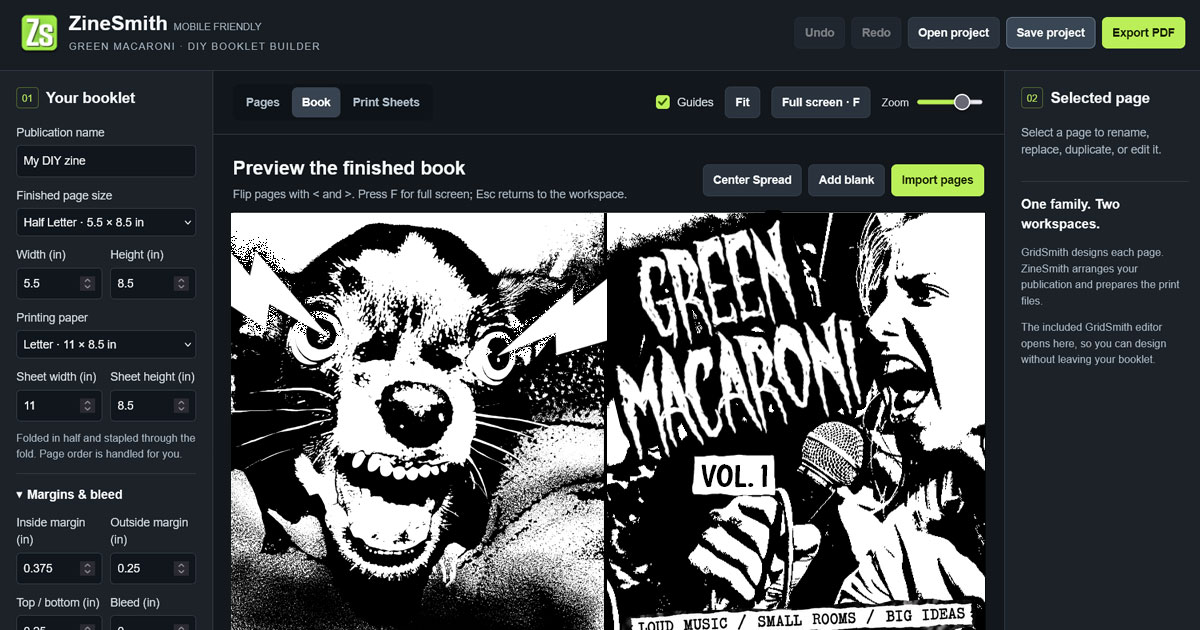
ZineSmith keeps publication setup, page arrangement and page-specific controls in separate areas so you can always tell what kind of change you are making.
Guides, Fit and Zoom
Guides shows or hides non-printing safe-area and sheet guides. Fit returns the preview to its normal fitted size. The Zoom slider enlarges or reduces the publication preview without changing the actual output dimensions.
Set up the booklet
The settings in 01 · Your booklet describe the physical publication you want to make, not just the screen preview.
Finished page size
Choose Half Letter, Letter, Half Legal or Custom. The width and height fields remain available for exact custom dimensions.
Printing paper
Choose Letter, Legal, Tabloid or Custom. The sheet needs to accommodate two finished pages side by side, plus any bleed or printer marks you request.
Default booklet
ZineSmith starts with 12 blank Half Letter pages. That equals three Letter sheets printed on both sides and folded to make a 5.5 × 8.5 inch booklet.
Margins
- Inside margin is the space nearest the fold.
- Outside margin is the space nearest the outer trimmed edge.
- Top / bottom sets the vertical safe margin.
- Left and right pages mirror the inside/outside relationship automatically.
Bleed
Bleed is extra artwork beyond the finished trim edge. Selecting a bleed amount cannot invent missing artwork. If the source page does not contain enough artwork outside the trim, ZineSmith warns you.
Build and arrange your pages
ZineSmith accepts several kinds of source material, so you can mix editable page designs, scans, finished images and PDF pages in one booklet.
Import pages
Choose Import pages, drag files onto the stage, or replace a selected page. Supported page sources are:
Automatic blanks
Saddle-stitched booklets need a page count divisible by four. If yours is not, ZineSmith pads the end with automatic blank pages and shows them in previews. They are not the same thing as blank pages you intentionally add and arrange yourself.
Reordering
In Pages view, drag normal page tiles into reading order. You can also select a page and use Move earlier or Move later. Linked Center Spread halves are kept together and are not individually draggable.
Selected page tools
Select a page in any preview to see its page-specific controls in 02 · Selected page.
Editing in the included GridSmith
ZineSmith opens its included GridSmith editor in a dialog. Choose Apply to booklet when the page is ready. GridSmith has its own undo while you are inside the page editor; ZineSmith's Undo applies to booklet-level edits.
Center Spread
The physical middle pair of a saddle-stitched booklet can be treated as one continuous piece of artwork spanning both pages.
Create or import a linked spread
Choose Center Spread, then either import one full-width PNG, JPG, WebP or GridSmith spread JSON, or choose Create blank Center Spread in GridSmith.
- The source is fitted proportionally without cropping, then divided into left and right printable halves.
- Both halves stay linked and remain in the physical middle as pages are added or removed.
- Select either half and choose Edit whole Center Spread to work on the complete design.
- Replace and Delete act on the whole linked spread, not one half.
- Undo can restore the previous center pages after a spread replacement.
Joined spread or Separate pages
Pages view can display the middle pair as a visually joined spread or as two separate page tiles. This changes only how you inspect the pair; it does not change the underlying publication.
Pages, Book and Print Sheets
The three preview modes show the same publication from three different viewpoints. Switching among them is one of the best ways to catch mistakes before printing.
Book full screen
In Book mode, choose Full screen · F for a clean reading preview with guides hidden. Move the pointer to reveal Previous, Next and Exit controls temporarily.
Page number designer
ZineSmith can add publication-wide page numbers independently of the artwork designed in GridSmith.
Number design
- Turn Add page numbers in ZineSmith on or off.
- Choose Sans, Serif or Monospace fonts, with regular or bold weights.
- Set size, text color and number format: 1, 2, 3; 01, 02, 03; or 1 / 12.
- Place numbers at the top or bottom and choose Center, Outside mirrored, Inside mirrored, Left or Right.
- Use side and top/bottom insets for precise positioning.
Shapes behind numbers
Choose None, Circle or Square. Set size, fill color, outline color and width, square corner radius and shape opacity. The number text remains fully opaque. Shapes size consistently across the publication and grow when needed to fit the widest visible number.
Sequence controls
- Choose the starting number.
- Choose whether covers count in the sequence.
- Hide numbers on front/back covers if desired.
- Hide numbers on automatic blank pages without removing those pages from the sequence.
Black & White output
The Black & White controls change previews and exported output while preserving the editable color originals inside the project.
Higher threshold values make more of the artwork black. The solid-mode preview is approximate, so export a proof before relying on fine detail.
Margins, bleed, creep and printing
ZineSmith exposes the physical print decisions that ordinary page-layout apps often hide, and it warns when the requested job does not fit the chosen paper.
Live print checks
Open Margins & bleed to see current checks. ZineSmith can flag page-count padding, artwork that lacks requested bleed, layouts that do not fit the selected sheet, printer-edge problems, and GridSmith text objects that cross the configured safe margins.
Printer's unprintable edge
Set the edge area your printer cannot reliably print. Print Sheets can display that area so you can keep important artwork clear of it.
Creep
Maximum creep correction moves inner sheets slightly toward the fold to compensate for the thickness of nested paper. The correction increases toward the inside of the booklet.
Crop and fold marks
Crop marks show where a bleed layout should be trimmed. Center fold marks show the fold position. These marks live outside the artwork and therefore need physical room on the sheet.
Duplex test first
Printers disagree about feed direction and flipping. Use the built-in Duplex Test, print it at Actual size / 100%, and determine which flip direction makes both sides upright before printing the full booklet.
Save, open and recovery
ZineSmith has both portable project files and browser-local recovery. They serve different purposes.
Save project
Downloads a complete .zinesmith project. The current format stores page data in project.json and every referenced original/preview asset once inside an assets/ folder. Keep the complete project file, not the internal JSON by itself.
A saved project can be moved to another device and reopened in ZineSmith 01.020 or later. ZineSmith checks artwork size and SHA-256 checksums while opening version-2 projects.
Open project
Use Open project for .zinesmith project files. Older project formats are accepted and converted when possible.
Browser recovery
ZineSmith keeps a recovery copy in this browser on this device using browser-local storage. If a recoverable booklet exists, you can restore it or explicitly start new and discard the recovery copy.
.zinesmith file before closing or refreshing, especially with important or large projects.Export your booklet
The Export dialog asks what the file is for first, then exposes only the options relevant to that job.
| Export mode | What it makes | Use it for |
|---|---|---|
| Read on Screen | A PDF of individual pages in reading order. | Viewing, proofing or sharing a normal digital document. |
| Print and Fold at Home | An imposed PDF containing the front and back of physical sheets. | Duplex or manual-duplex home printing, folding and center stapling. |
| Send to a Print Shop | Individual pages with the configured bleed area and optional crop marks. | A commercial printer that wants separate pages rather than an imposed home-print booklet. |
| Share as Images | A ZIP of JPG or PNG files in reading order. | Social media, messaging, online previews and other screen use. |
| Duplex Test | A simple two-sided numbered test PDF. | Learning the correct paper feed and flip setting for your printer. |
PDF image resolution
Choose 150 DPI for a smaller file or 300 DPI for print quality. GridSmith and image pages are rasterized for PDF output at the chosen resolution, subject to the app's rendering limit. Native PDF pages can retain vector content in color exports.
Home-print controls
Choose crop marks, center fold marks, back-side rotation, and whether to export all sheet sides or only fronts / only backs for a manual-duplex workflow.
Share as Images
ZineSmith can make a ready-to-unzip set of screen-sized images in the same reading order as the publication.
Choose the image output
- JPG is the default and makes smaller files.
- PNG preserves lossless detail.
- Choose 800, 1280, 1600 or 2048 pixels on the longest edge. 1280 is the default screen-sharing size.
- Keep Center Spread joined is on by default. Turn it off when you want one image for every individual page.
What is included
The ZIP includes every finished page position in reading order, including automatic blanks. Filenames begin with three-digit positions; a joined middle pair uses both positions. ZineSmith page numbering and Black & White settings are applied.
What is not included
Guides, bleed, crop marks and fold marks are intentionally omitted. Sharing images are screen output, not print masters.
Privacy, local files and practical limits
ZineSmith is designed around local browser processing. Your artwork does not need to be uploaded to a Green Macaroni server to use the app.
Your artwork stays on your device
When ZineSmith says Upload, it opens a file locally in your browser. The artwork is not sent to this website or a Green Macaroni server. Recovery data is also stored locally in the browser.
How larger projects are handled
Original artwork and previews are kept as separate local binary assets rather than copied into every undo state. Identical files share one stored copy. The app uses lightweight image previews for the workspace while keeping originals for export.
Current guardrails
- Up to 200 booklet pages.
- Up to 100 MB for each imported file.
- If durable browser storage is unavailable, temporary in-tab fallback artwork is limited to 256 MiB.
- Browser storage and device memory still vary. A phone may handle less than a desktop or laptop.
Current production limits
This version is for saddle-stitched booklets. It does not provide PDF/X certification, CMYK conversion, spot-color separation or embedded-font packaging. Print shops have different requirements, so confirm the file specifications with the printer before a production run.
Keyboard shortcuts
ZineSmith keeps its shortcut set small so page-turning and undo remain predictable.
| Shortcut | Action |
|---|---|
| Ctrl/Cmd + Z | Undo a ZineSmith booklet edit. |
| Ctrl/Cmd + Shift + Z | Redo a ZineSmith booklet edit. |
| < / , / Left Arrow | Previous spread in Book mode. |
| > / . / Right Arrow | Next spread in Book mode. |
| F | Enter or leave the clean full-screen Book preview. |
| Esc | Leave the full-screen Book preview. |
Book shortcuts pause while you are typing into a field or while a dialog is open, so normal text entry is not hijacked.