
Quick start
Palette Grabber can produce a useful palette in less than a minute, while still giving you room to refine every color afterward.
Palette Grabber and the Green Macaroni ecosystem
Palette Grabber is the color-collection side of the ecosystem. It turns photographs, artwork and real-world references into reusable design colors.
The important idea is consistency. Instead of choosing colors separately in every app, you can establish a palette once and carry the same visual language through the rest of a project.
What Palette Grabber does
There are three related jobs inside the app: analyze an image, sample individual colors, and maintain reusable palette libraries.
The app starts with a protected Built-In Demo palette so there is always something visible even before you load an image.
Load, zoom and inspect an image
The canvas is both a visual reference and the source used for sampling and analysis.
Loading
Use Browse Image…, press B, or drag and drop an image file onto the page. The filename appears in the top bar.
Fit and 100%
- Fit scales the image to the available canvas width.
- 100% returns to a 1:1 pixel display and lets the canvas area scroll internally when the image is larger than the viewport.
Hand tool
Click Hand (P) or press P, then drag the zoomed image to pan. Hold Space over the canvas to pan temporarily, then release it to return to your sampling tool. On touchscreens, use one finger to pan with Hand selected and two fingers to pinch zoom.
Zoom
The desktop zoom slider and preset menu cover 25% through 800%, with Fit as a separate option. Pinch zoom is supported on touch devices and keeps the point between your fingers anchored while the image changes scale.
Clear
Clear removes the loaded image from the canvas. It does not erase your active swatch palette or Library.
Eyedropper and Area Sample
Use these when you want to choose the color yourself instead of accepting an automatically generated analyzer palette.
Eyedropper
Turn on Eyedropper (E), then click or touch the image. The sampled HEX and RGB values become the current color, shown in the live color readout. On mobile, the eyedropper locks page scrolling while you are sampling so your finger can move over the image reliably.
Area Sample
Turn on Area Sample (A), then drag a rectangle over the image. Palette Grabber averages every pixel inside that rectangle and makes the result the current color. This is useful for textured paint, fabric, skin, sky, foliage and other areas where one pixel would be misleading.
Add the current color
Press Add Current in the Active Swatches panel to append the current sampled color to the active palette.
The Color Analyzer
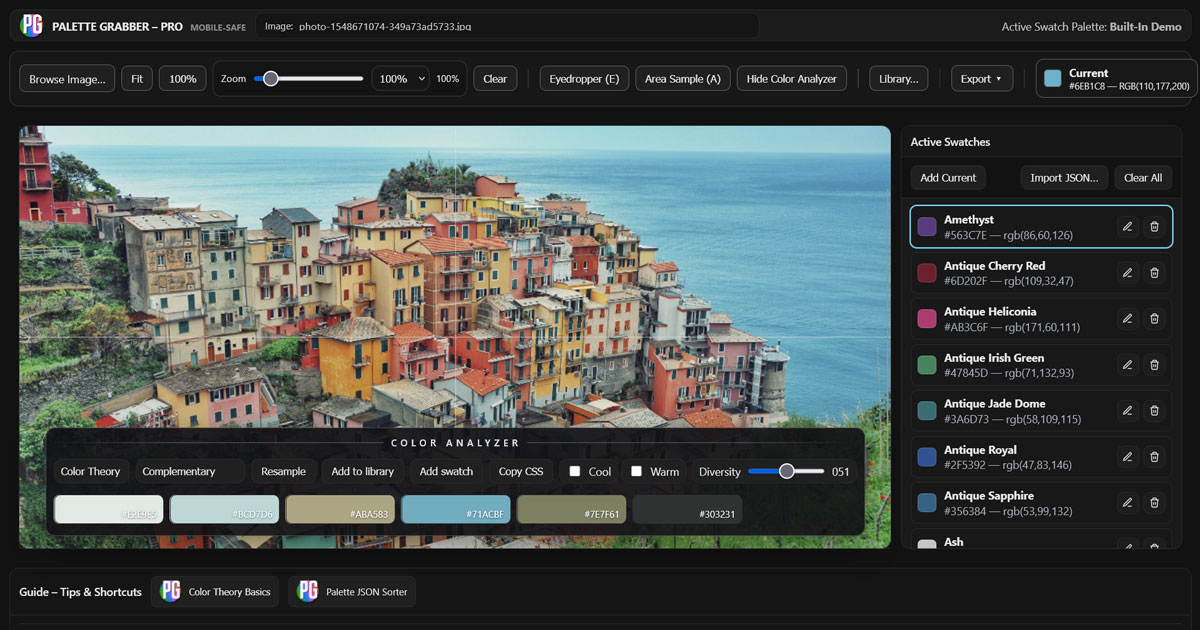
The analyzer turns the image into a compact six-color palette, then lets you change the selection strategy without reloading the image.
The Color Analyzer samples the image, evaluates color relationships in a perceptual color space, and displays six primary analyzer swatches. Those six are meant to be useful together rather than simply being the six most common raw pixel values.
The analyzer automatically rebuilds when the source image or relevant controls change. You can also use Resample to ask for another valid selection from the same image and current settings.
Use Hide Color Analyzer when you need more working space. The app remembers that visibility preference in the browser. Press H to show or hide it. The alternative keyboard shortcut is Ctrl+Shift+Y, or ⌘+Shift+Y on Mac.
Color Analyzer modes
Modes answer different questions about the same image. There is no single “correct” palette.
| Mode | What it favors | Good use |
|---|---|---|
| Global | A balanced overall reading of the image with representative color families and tonal spread. | Your best general-purpose starting point. |
| Light-leaning | Lighter pixels and brighter value ranges while keeping the broader Global selection logic. | Airy layouts, light backgrounds, highlights and softer palettes. |
| Dark-leaning | Darker pixel ranges and lower-lightness source colors. | Dark themes, shadow-driven images and deep ink palettes. |
| Vivid | Higher-chroma colors with extra pressure for hue separation. | Posters, screen graphics and images where you want the strongest color families to surface. |
| Pastel | Lighter colors with restrained chroma. | Soft, dusty or less aggressive palettes. |
| High-contrast | Dark and light extremes, with more mid-tone variety appearing as Diversity increases. | Palettes that need strong tonal separation and readable contrast. |
| Curated+ | Maximum variety by combining the intentions of Light, Pastel, Global, Vivid, High-contrast and Dark, then arranging the result from light to dark. | When you want a deliberately varied six-color overview instead of one single aesthetic bias. |
Cool, Warm, Diversity and Resample
These controls change how the analyzer chooses or biases its six colors.
Cool and Warm
Cool and Warm are mutually exclusive temperature biases. Turn on Cool to favor cooler output, Warm to favor warmer output, or leave both off for a neutral result.
Diversity
Diversity runs from 0 to 100 and controls how strongly the analyzer pushes for separation and variety. Lower settings generally keep the palette more conservative and clustered. Higher settings encourage wider hue, value and chroma spread. During the current session, each analyzer mode remembers the Diversity value you last used for that mode.
Resample
Resample changes the analyzer seed and builds another valid six-color answer using the same image, mode, temperature and Diversity settings. If an image contains several equally plausible color families, this is a fast way to explore alternatives.
Working with analyzer swatches
The generated six are editable, copyable and expandable.
- Single-click a generated chip to copy its HEX value to the clipboard.
- Double-click a generated chip to open that chip in the main Color Mixer & Namer. Save sends the edited HEX value back to the chip.
- Add swatch appends the current sampled color as an extra analyzer chip.
- The analyzer supports the six generated swatches plus up to 24 user-added extras, for roughly 30 chips at once.
Add to Library
Add to library saves all analyzer chips, not just the first six. You can choose to replace the current palette, create a new palette, or blend/append the analyzer colors into the active palette. The protected Built-In Demo cannot be overwritten; Palette Grabber creates a new user palette instead.
Copy CSS
Copy CSS can copy either the current six analyzer colors as --c1 through --c6, or generate CSS variable blocks for all saved libraries.
Active Swatches
The right-side swatch list is the editable contents of the currently active palette library.
Each row shows the swatch name, HEX value and RGB values. Click a row to select it. Click its color chip or pencil button to open the Color Mixer & Namer.
- Add Current appends the live sampled color.
- Import JSON… replaces the active palette contents with an imported palette and uses the imported name or filename as the palette name.
- Clear All empties the active palette.
- The trash button removes one swatch.
- A deleted swatch gets a temporary Undo toast. Ctrl/⌘+Z also restores the most recently deleted swatch while that undo state is available.
Color Mixer & Namer
The mixer is where a sampled or saved swatch becomes an intentionally authored color.
You can open the mixer from the current live color, an Active Swatches row, or by double-clicking an analyzer chip.
Saving from a sidebar swatch updates that swatch and its name. Saving from the current live color updates the current color. Saving from an analyzer chip pushes the new color back into that chip.
Palette Library
Libraries turn one-off sampling into a reusable color system that remains available in the browser.
Open Library… to browse saved palettes. The built-in palette appears first; user palettes are then listed by name with small preview chips.
Drag the Library title bar to move the window. Drag the bottom-right resize handle to change its width and height. The window remembers its size and position in this browser and stays within the screen. You can also focus the resize handle and use the arrow keys, with Shift for larger steps. Double-click the title bar to center it.
| Library control | What it does |
|---|---|
| Set Active | Makes the selected library the working palette shown in Active Swatches. |
| Duplicate | Creates a copy under a new name. |
| Rename | Changes the selected library name. |
| Export JSON | Downloads the selected library with its name and swatches. |
| Delete | Removes the selected library. Palette Grabber will not delete the last remaining library. |
| New from Current | Creates a new named library using the current Active Swatches. |
| Import JSON… | Adds an imported JSON palette as another library rather than replacing the current one. |
The Library is meant to become a long-term color collection, not just a short recent-colors list. There is no small fixed app limit such as 10 or 20 saved palettes. Because palettes are compact data, a browser can hold a very large collection, potentially thousands of small named palette sets, with the practical ceiling determined by that browser and device's local-storage capacity.
Each saved palette can contain many individual swatches. This makes the Library useful for keeping separate color sets for clients, paintings, interiors, photographs, brands, seasons, projects or anything else you want to revisit later.
The Library and active-library choice are stored locally in the browser, so they can survive page reloads on the same browser profile.
Import, export and sharing
Palette Grabber supports both machine-readable palette files and human-readable presentation sheets.
| Output | Purpose |
|---|---|
| JSON | Portable palette data for re-importing, archiving and moving color information into compatible workflows. |
| CSV | Spreadsheet-friendly rows containing name, HEX and RGB values. |
| HTML table: Small / Medium / Large | Standalone printable/viewable swatch tables with names, HEX and RGB information. Large uses a fixed four-column layout. |
| HTML Painters Dots: Small / Large | Label-free circular color dots for a more visual physical-color reference. |
| PDF table | A self-contained printable palette table generated directly in the browser. |
| Email Active Palette | Choose JSON, CSV, HTML or PDF. On supported mobile devices the file can be handed to the native share sheet; on desktop browsers that cannot attach generated files directly, Palette Grabber downloads the file and opens a prepared email draft. |
| Copy CSS | Copies CSS custom properties for the current six analyzer colors or for all libraries. |
Two different JSON import paths
Import JSON… in Active Swatches replaces the colors of the active palette. Import JSON… inside the Library adds the imported palette as a new library. Choose the path that matches what you intend.
Palette JSON Sorter
The footer links directly to Palette JSON Sorter. Use it when you have a larger JSON palette whose swatch order needs to be reorganized without manually recreating the colors.
Color basics used by Palette Grabber
You do not need color-science vocabulary to use the app, but three terms make the controls easier to understand.
The analyzer goes beyond simple HSL sorting when it chooses its six colors, but HSL remains the most useful human-facing way to edit a swatch in the mixer.
Mobile and touch use
The interface rearranges for smaller screens while preserving the same palette data and export capabilities.
- Browse Image… uses the phone's image picker. On supported smartphones, that picker can offer the camera, letting you photograph something in front of you and analyze its colors without first transferring the image from another device.
- The active palette name moves into the Active Swatches header on narrow screens.
- The desktop crosshair bars are hidden; the mobile reticle remains visible for eyedropper work.
- Eyedropper mode prevents normal page gestures while actively sampling, giving the reticle a stable finger-tracking surface.
- One-finger movement can pan the internally scrollable canvas when you are not actively sampling.
- Two-finger pinch zoom is supported from 25% to 800%.
- The Color Analyzer has its own mobile Show/Hide control to reclaim vertical space.
- Email/share export uses the device share sheet when the browser allows generated file attachments.
The A Area Sample keyboard shortcut is intentionally treated as desktop-only. On phones and tablets, the primary touch sampling workflow is the Eyedropper.
Your images stay in your browser
Palette Grabber performs the image work locally in the page.
When you choose an image, the app opens that local file into the browser canvas for sampling and analysis. The current build does not contain an image-upload request that sends your photograph or artwork to a Green Macaroni server.
Your saved palette libraries are stored in the browser's local storage. Exporting creates files locally for you to download or share.
Keyboard and control gestures
The current build includes both visible shortcuts and a few useful inspection shortcuts.
| Control | Action |
|---|---|
| B | Open Browse Image. |
| F | Fit the image to the viewport width. |
| 1 | Show the image at 100% / 1:1. |
| H | Show or hide the Color Analyzer. |
| E | Toggle Eyedropper mode. |
| A | Toggle Area Sample on desktop. The app reports this shortcut as unavailable on mobile. |
| C | Clear the loaded image. |
| Delete / Backspace | Delete the selected Active Swatch. |
| Ctrl/⌘ + Z | Restore the most recently deleted swatch while its undo state is active. |
| Ctrl/⌘ + Shift + Y | Show or hide the Color Analyzer. |
| G | Toggle the faint inspection grid overlay. |
| P | Toggle the Hand tool; drag to pan without sampling. |
| Space (hold) | Temporarily pan from the canvas, then release to return to your sampling tool. |
| R | Toggle the desktop reticle overlay. |
| Ctrl/⌘ + + / - / 0 | Additional canvas inspection zoom controls supplied by the grid/reticle bridge. |
| Drag image file | Drop an image onto the page to load it. |
| Pinch | Zoom the image on touch devices while keeping the pinch center anchored. |
| Double-click analyzer chip | Open that analyzer color in the main Color Mixer & Namer. |
Troubleshooting
Most Palette Grabber questions come down to the distinction between the image, the analyzer palette, the current color, the active swatch list and the Library.
I loaded an image but the palette is not what I expected
Try a different analyzer mode, move Diversity, toggle Cool or Warm, then press Resample. The analyzer is deliberately capable of producing more than one useful answer from the same image.
I want one exact color, not an automatic palette
Use the Eyedropper. For textured regions, use Area Sample to average a larger patch, then press Add Current.
My sampled color seems slightly blended
If you are working at a scaled view such as Fit, switch to 100% before taking a critical pixel sample.
I edited an analyzer color but it changed again
Analyzer colors are generated output. Changing analyzer settings, resampling or rebuilding the image analysis can regenerate the base six. Save important results to the Library or Active Swatches before continuing to experiment.
I imported JSON and my current palette was replaced
The Active Swatches Import JSON… command is a replace workflow. Use the Library's Import JSON… command when you want to add the file as another library instead.
I cannot overwrite Built-In Demo
That is intentional. The built-in palette is protected. When you try to replace it from the analyzer, Palette Grabber directs you into creating a new user palette.
I lost saved libraries after clearing browser data
Libraries live in browser local storage. If a palette matters outside this browser installation, export it as JSON and keep the file with the rest of the project.
Email export downloaded a file instead of attaching it
Desktop browsers do not all allow a web page to hand generated attachments directly to an email client. In that case Palette Grabber downloads the file first and opens a prepared email draft so you can attach the downloaded file manually.