
Quick start
You can make a useful poster without learning a design program.
What Lost Pet Poster does
The app turns a small set of useful information into a consistent one-page poster.
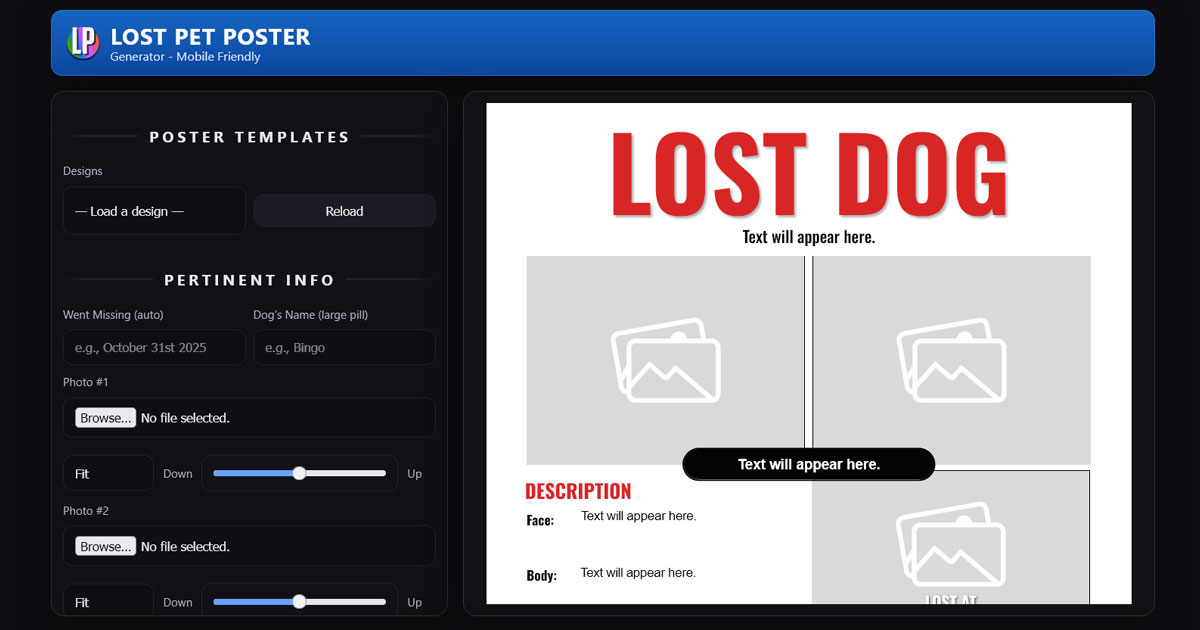
The supplied templates are US Letter portrait layouts at 2550 × 3300 pixels. They include prominent title and name areas, two photo positions, a last-seen map area, a short description block, contact information, a QR square and built-in sighting guidance.
The app is designed around speed and reach: make one clear poster on a phone, tablet or desktop computer, share it digitally right away, and use the same high-resolution result for printed copies in the neighborhood. The phone workflow is especially fast when you already have the pet photos on the device or want to take a new photo with the camera.
You do not directly move or resize the poster elements. Instead, the left panel controls the information that flows into the designed layout while the preview updates.
Choose a poster template
The Designs menu supplies three ready-made Letter-size versions.
| Template | Designed for | What changes |
|---|---|---|
| Lost Dog - Letter Size | Missing dogs | Uses dog-specific headings and the built-in message that a frightened dog may run from people. |
| Lost Cat - Letter Size | Missing cats | Uses cat-specific wording, including Legs / Paws and Collar / Tags. |
| Lost ? - Letter Size | Birds, rabbits, ferrets and other pets | Reveals an Animal Type field and a Title Width control so the large title can adapt to different animal names. |
The general-pet title
When you choose Lost ?, type the animal in Animal Type. The app turns it into a large title such as LOST RABBIT or LOST COCKATIEL. Longer titles are automatically compressed to fit the title area, and the Narrow/Wide slider remains available for manual fine-tuning.
Reload
Reload restarts the page and returns the app to its normal layout-loading state. Use it when you want a clean restart.
Pertinent information
The first fields establish the most immediately recognizable facts.
Went Missing
Enter the date or date wording you want shown. If you type only the date, the app adds the WENT MISSING: prefix for the poster automatically.
Pet name
The large name field fills the prominent pill near the top of the poster. In the current interface the label says Dog’s Name (large pill), but the same field is used by the cat and general-pet templates too.
Keep this field to the pet’s familiar name rather than adding sentences. The layout is designed to make the name readable quickly.
Photos
Two image slots let the poster show more than one useful view of the pet.
Photo #1 and Photo #2
Choose an image file for either slot. The app reads the image into the browser and places it in the matching poster frame.
| Control | Effect |
|---|---|
| Fit | Shows the complete image inside the available photo box. Empty space can appear if the image and frame have different proportions. |
| Fill | Fills the complete photo box and crops the parts that extend beyond it. |
| Position slider | Moves the image framing vertically so the most useful part of a cropped photo stays visible. |
Choosing useful photos
When possible, use clear, recent images that show different identifying information. For example, one image can show the face and another can show overall body shape, markings or coat pattern. Avoid effects that change identifying colors or markings.
Map and last-seen area
The app uses a map image that you supply; it does not contain a live mapping service.
Last seen at
Enter the location in ordinary language, for example a park, intersection, trail, neighborhood or nearby landmark. The poster adds the Last Seen: label.
Map image
Take or save a screenshot from the map service you prefer, then load that image into the Map field. Like the pet photos, the map has Fit/Fill and vertical-position controls.
- Show enough surrounding area that someone can orient themselves.
- Make sure important street names or landmarks remain legible.
- If the screenshot includes a location marker, confirm that it marks the intended place before downloading the poster.
Description fields
The poster separates identifying information into short categories so it can be scanned quickly.
| Field | Good information to include |
|---|---|
| Face | Distinctive muzzle, eyes, ears, blaze, facial color or unusual markings. |
| Body | Approximate size/build, coat length, overall color, spots, patches or other body markings. |
| Legs | Leg or paw markings, distinctive feet, leg length or another clearly visible feature. |
| Wearing | Collar, harness, tags or other gear the pet may still be wearing. |
The cat and general-pet templates adjust some of these headings to more appropriate wording. The general template, for example, uses Head / Face, Body / Colour, Legs / Feet and Collar / Gear.
Keep it concise
These boxes are most useful for short, identifying facts. Put the most distinctive feature first instead of trying to write a complete biography.
Contact information
You can place two contacts on the poster.
Enter a Primary Name and Phone, and optionally a Secondary Name and Phone. The poster has separate places for both.
In the supplied build, phone entry is normalized to a 10-digit ###-###-#### format. Non-numeric characters are removed while you type.
QR code
A URL entered in the QR field is converted into a QR code and placed in the poster’s QR square.
The app starts with a default URL in the field. Replace it with the page you actually want people to reach. That could be a current missing-pet listing or another page containing additional information and updates.
The QR image is generated in the browser from the text/URL you enter.
The live preview
The right side shows the poster as the fields, images and template are combined.
On desktop the form and poster can sit side by side. On smaller screens the layout becomes a single column and the poster scales to the available width.
Use the preview to catch practical problems before export: a cropped head, hidden street name, misspelled pet name, overly long description, wrong phone number or generic title that needs a little width adjustment.
Layout status
The small status text under the preview reports the loaded design, page size/orientation and internal item count. It is mainly diagnostic information; you do not need to edit it to make a normal poster.
Download, share and print the finished poster
The visible export control creates a high-resolution JPG that can be shared digitally or printed.
Download JPG
The normal output is 2550 × 3300 pixels, the standard pixel dimensions for an 8.5 × 11 inch Letter page at 300 pixels per inch. The export is rendered against a white background.
The filename uses the pet name when available, the output dimensions and the current date.
Phones and tablets
On supported mobile devices, the finished JPG can be passed to the operating system’s Share sheet so you can send it to social media, messaging apps, email, cloud storage or another available destination. The app has a separate iPhone/iPad export path; if direct sharing is unavailable or fails, it opens the finished image in an in-page preview with instructions to press and hold the image to save or share it.
Desktop and laptop computers
On a computer, download the JPG and use your normal browser, email, social-media, messaging, cloud-storage or printing workflow. The same 2550 × 3300 file is suitable for sending to someone else to print, taking to a print shop, or printing directly on a local printer.
Phones, tablets and desktop computers
The same app works across screen sizes, with the interface adapting to the device you are using.
- Phone: controls become larger for touch, the poster preview scales to the screen, and the image picker may offer the camera as well as existing photos. Supported phones can also use their normal Share sheet.
- Tablet: you get the same touch-friendly workflow with more room for the form and preview, plus the tablet’s normal sharing, email and printing options.
- Desktop or laptop: the form and poster can sit side by side, making it easy to work from existing photos, download the finished JPG, post it to social media, attach it to email or messages, save it to cloud storage, or send it to a printer.
A phone is often the fastest route because the camera, photos and sharing tools are already in one device, but it is not required. Lost Pet Poster is fully usable on tablets and computers as well. Whichever device you use, the goal is the same: create one clear poster quickly, distribute it digitally, and keep the full-resolution version ready for physical printing and local posting.
Privacy and local processing
The pet photos, map screenshot and information you enter are handled in the browser by this build.
- Chosen images are read locally with the browser’s file-reading APIs.
- The poster preview and JPG are assembled in the browser.
- The QR graphic is generated in the browser from the URL you enter.
- The supplied app code contains no upload endpoint that sends your selected photos or form contents to Green Macaroni.
- If you deliberately share, email, upload or print the finished poster, the file goes only to the destination or service you choose through your device or browser.
The web page itself, templates, scripts, fonts and other normal site assets still load from the Green Macaroni server.
Where it fits in Green Macaroni
Lost Pet Poster is deliberately more focused than the general design apps, but it can still benefit from the same tool ecosystem.
Advanced: custom poster JSON
The normal templates are ready to use, but the app also accepts compatible layout JSON.
Upload Poster JSON lets an advanced user load a different poster layout. The current build can normalize several GridSmith-style JSON structures, including layouts containing text, boxes, photos and QR items.
A Poster Template for Developers link is also provided beneath the form.
Current build notes worth knowing
A few details are useful to understand before you rely on the app in a hurry.
| Area | Current behavior |
|---|---|
| Poster size | The supplied public templates are Letter portrait at 2550 × 3300 pixels. |
| Export | The visible poster export is JPG. |
| Project saving | The normal form does not save a complete editable poster project containing your entered fields and chosen photos. Download the finished poster before closing/reloading. |
| Map | The app accepts a map screenshot/image; it does not search addresses or generate a live map. |
| Phone formatting | Phone fields keep up to 10 digits and format them as a North American number. |
| Pet-name label | The current UI says “Dog’s Name” even when the Cat or general-pet template is selected; it still fills the correct large name area. |
| Went Missing | You provide the date/text. The app automatically supplies the “WENT MISSING:” wording when needed. |
| QR code | The code contains the URL you enter. The app cannot verify that the destination page contains current or correct information. |
Before you print or share
A short final check can prevent a beautifully generated poster from carrying the wrong information.
- Confirm the pet name and missing date.
- Make sure both photos show the intended pet and are framed usefully.
- Check the last-seen wording and map location.
- Read every identifying description once.
- Call or visually verify each phone number.
- Scan the QR code and confirm the destination.
- Look at the poster at a reduced size: the title, name, main photos and contact path should still be easy to identify.
- Download the full-resolution JPG and keep that master copy.
Troubleshooting
Most problems involve image framing, phone formatting, mobile exporting or a field that behaves differently than its label first suggests.
The photo is cropped too tightly
Switch that slot from Fill to Fit. If you want to keep Fill, use the position slider to move the important part of the image into view.
The map cuts off the street name I need
Try Fit, adjust the vertical position, or create a new screenshot with a little more surrounding area.
I selected Lost Cat, but the form still says Dog’s Name
That is the label used by the current form. Enter the cat’s name there; it still fills the large name pill in the Cat template.
“Went Missing” is not filling today’s date automatically
The field does not infer the missing date. Type the correct date yourself. The automatic behavior is the poster prefix: the app adds WENT MISSING: if you did not type it.
My international phone number is being changed
The current phone formatter keeps a maximum of 10 digits and formats them as ###-###-####. This build is therefore best suited to 10-digit North American numbers.
The generic animal title is too wide
The app auto-compresses longer titles, but you can also use the Title Width slider that appears with the Lost ? template.
The QR code goes to the wrong page
Replace the URL in the QR field and check the preview again. Always scan the final code before distribution.
JPG export fails on iPhone
The app retries through several export methods and can fall back to a reduced-size JPG. If the system Share sheet does not work, it should present the image on screen so you can press and hold it to save/share.
I reloaded and lost the form contents
The normal form is not a saved editable project. Reload is a restart. Keep the downloaded JPG, and avoid reloading until the poster is finished.
I uploaded Poster JSON but my pet details did not return
Poster JSON is the design/layout structure. It is not a backup of the photos, contact fields or description you entered in the form.