
Quick start
InkSmith is easiest to learn by starting with a preset, then changing the physical behaviors that produced it.
Where InkSmith fits in Green Macaroni
InkSmith is the reproduction and print-character stage of the ecosystem. It can prepare finished raster artwork for composition, zines, posters and even later vector tracing.
That is the most common chain, but InkSmith can enter or leave the workflow at several points:
What InkSmith is designed to do
InkSmith models print and reproduction behavior rather than stacking generic distress filters.
Clean artwork goes in. Something with a history comes out.
The app is built around physical causes. A photocopy preset changes because a previous copy becomes the source of the next copy. Color Plates reconstruct color from separate Cyan, Magenta, Yellow and Black impressions. Screening uses recognizable dot, line, ring, stochastic and contact-screen structures.
The engines can form a causal chain
InkSmith processes enabled stages in an intentional order. Posterize can simplify the source first. Color Plates can reconstruct that result as separate physical impressions. Photocopy can then be re-enabled to reproduce the printed result as a later copy. When Color Plates are off, Photocopy can feed into the Screening stage.
Loading images and local processing
InkSmith accepts ordinary web image formats and keeps the artwork on the device.
| Input | Behavior |
|---|---|
| Upload Image | Loads PNG, JPG/JPEG or WebP. |
| Drag and drop | Drop a supported image onto the preview stage to replace the current source. |
| Load Sample | Loads the bundled InkSmith sample so the reproduction controls can be explored immediately. |
| Clear Image | Removes the current source without changing the app itself. |
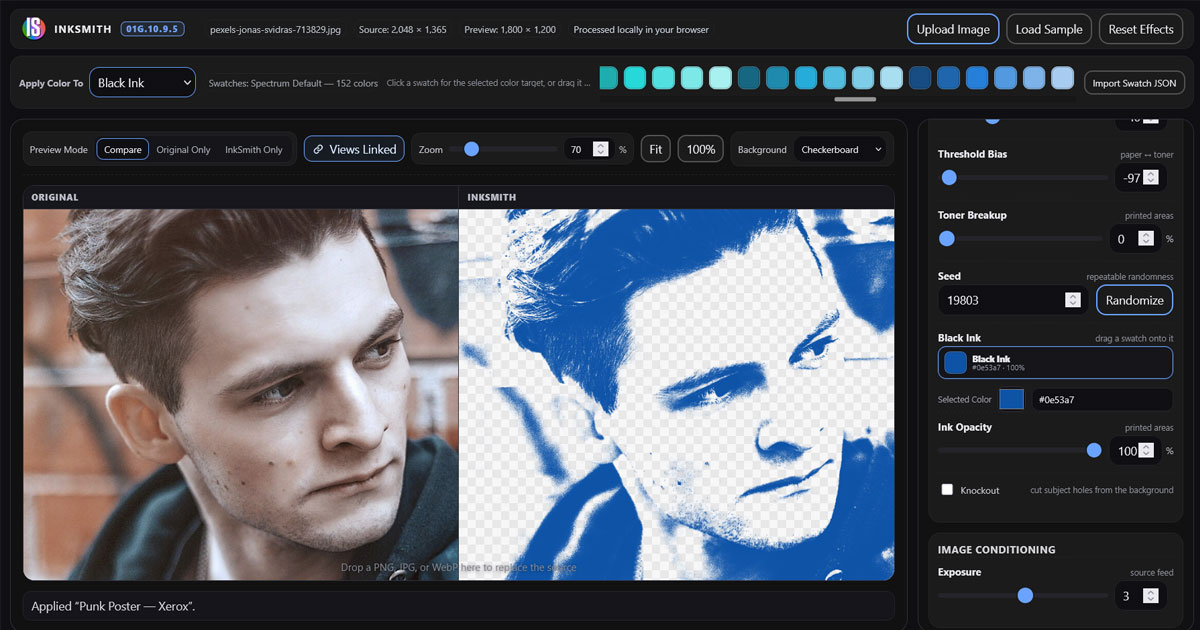
The header shows the source filename, source dimensions and preview dimensions. InkSmith creates a lightweight preview proxy for interaction, normally capped around an 1800-pixel long edge and reduced further when the image or device memory requires it. Full-resolution export does not use that proxy as the final source.
Preview workspace
The preview is designed for comparison and close inspection without forcing full-resolution processing on every slider movement.
| Control | Use |
|---|---|
| Compare | Shows Original and InkSmith together. On phones the two panels stack vertically. |
| Original Only | Uses the whole preview area for the source. |
| InkSmith Only | Uses the whole preview area for the processed result. |
| Link Views | Keeps both Compare viewports aligned while you pan or scroll. Turn it off when you want to inspect different regions independently. |
| Zoom | 10% to 400%. |
| Fit | Fits the image to the available preview area. |
| 100% | Shows the preview proxy at 1 preview pixel per screen pixel. |
| Background | Checkerboard, White, Black or Mid Gray. This is only the preview surround, not the Output Background used in the processed image. |
On desktop, drag inside a preview viewport to pan when the image is larger than the viewport. On touch devices, pan the scrollable preview naturally. Linked Compare views mirror the relative position.
Ecosystem color swatches
The palette strip at the top turns InkSmith's print colors into direct design choices rather than fixed “black toner on white paper.”
Apply Color To chooses the active target: Background, Black Ink, or one of the currently active Poster Colors. Click a swatch to apply it to the selected target, or drag a swatch directly onto a color chip/tab.
Import Swatch JSON
InkSmith accepts a JSON array containing color strings, RGB objects or objects with a hex value. Duplicate colors are removed. This makes the palette bar suitable for moving a chosen Green Macaroni palette into the reproduction stage.
Presets, snapshots and deeper exploration
InkSmith ships with 45 curated reproduction recipes. Presets are starting points; snapshots are session checkpoints.
Built-in Preset
Choose a preset in the Workflow panel and press Apply. The current supplied build opens with Office Copier selected. Applying a preset changes the same controls available in the interface, so the recipe remains editable.
| Category | Built-in presets |
|---|---|
| Reproduction | Clean Copy, Early Copy, Office Copier, Repeated Copies, Many Generations, High Contrast, Worn Toner, Broken Toner, Soft Duplicate |
| Punk Posters | Punk Poster - Xerox, Punk Poster - Color Halftone, Punk Poster - Posterized |
| AM Dot Screens | Fine Round Screen, Standard Round Screen, Coarse Round Screen, Elliptical Screen, Square Screen, Cross Screen |
| Line Screens | Fine Line Screen, Standard Line Screen, Coarse Line Screen, Diagonal Engraving |
| Concentric | Fine Concentric, Coarse Concentric |
| Stochastic | Fine Stochastic, Coarse Stochastic |
| Specialty Screens | Linen Texture, Steel Etch, Wavy Plate, Sunburst Screen |
| Color Plates | Clean Four-Color, Slight Misregistration, Bad Registration, Very Bad Registration, Sunday Comics, Newspaper Color, Cheap Magazine, Mail-Order Catalog, Old Packaging, Missing Cyan, Missing Magenta, Missing Yellow, Missing Black, Two-Plate Print, Three-Plate Print |
Preset files
Save Preset writes the current settings to an InkSmith JSON recipe. Load Preset restores a saved recipe. The preset contains processing settings, not the source image.
Presets & Snapshots window
This larger browser creates live thumbnails from the current source. Click a preset card to apply it. Save Snapshot records a customized settings state for the current session. Snapshot cards can be Applied, Compared against the current result, Updated, Renamed or Deleted.
Original Compare restores the ordinary original/current comparison after comparing a snapshot.
Advanced Export
Select any combination of built-in preset cards and current-source snapshots, then export:
- Selected ZIP: full-resolution PNG or JPG versions of every selected result, plus
exports.jsondescribing the settings used. - Contact PNG / Contact JPG: a labeled preview contact sheet for comparing multiple looks at once.
Output Background
This is the paper or backing color inside the processed artwork itself. It is separate from the preview checkerboard/white/black/gray setting.
| Control | Meaning |
|---|---|
| Background color | Choose with the color picker, hex field or ecosystem swatches. |
| Background Opacity | 0% to 100%. At 0%, the background becomes truly transparent and the checkerboard is visible behind it. |
Transparent background output is particularly useful when the reproduced result will be placed over another color, photograph or PatternSmith background in GridSmith.
Posterize Engine
Posterize turns photographic tonal information into hard-edged, cut-paper-like color regions with 2 to 8 editable colors.
| Control | What it changes |
|---|---|
| Enabled | Turns the Posterize stage on or off. |
| Number of Colors | 2 to 8 solid output regions. |
| Shape Simplification | Merges fine photographic detail into larger, cleaner shapes. |
| Exposure | Moves the source feed lighter or darker before separation. |
| Contrast | Increases or reduces tonal pressure before the color regions are assigned. |
| Threshold Bias | Moves the breakup toward darker or lighter regions. |
| Poster Colors | Each active region has an editable color and opacity. |
| Selected Opacity | 0% to 100% for the selected Poster Color. A color can be faded or made completely transparent. |
Source-Locked vs Palette-Adaptive
Source-Locked is the default. Changing a Poster Color recolors the already assigned region without moving the separation boundaries. Number of Colors, Shape Simplification, Exposure, Contrast and Threshold Bias still rebuild the separation.
Palette-Adaptive lets the chosen poster colors participate in classification, so editing the palette can also reshape which areas belong to which color.
Photocopy Engine
The photocopy stage is cumulative. Each generation reprocesses the previous copy instead of simply multiplying one noise texture.
| Control | Physical idea |
|---|---|
| Generations | 1 to 12 copies of copies. Higher values progressively collapse midtones and accumulate reproduction character. |
| Contrast | Tonal pressure inside the photocopy process. |
| Threshold Bias | Shifts whether borderline tones are more likely to become paper or toner. |
| Toner Breakup | Controls incomplete toner transfer inside printed regions. |
| Seed | Controls repeatable procedural variation. Same source + same settings + same seed gives the same result. |
| Randomize | Creates a new seed without changing the other reproduction settings. |
| Black Ink | Recolors the monochrome printed regions. It does not have to be black. |
| Ink Opacity | Controls the strength/opacity of the printed subject. |
| Knockout | Instead of printing the subject normally, the subject cuts holes from the selected Output Background. Ink Opacity controls the knockout strength. |
Knockout is useful for masks, stencil-like layers and compositing. In the current build, 0% Ink Opacity while Knockout is on produces a fully knocked-out subject shape rather than cancelling the knockout.
Image Conditioning and Artifacts
These controls describe additional behavior of the source and the reproduction medium.
| Control | Use |
|---|---|
| Exposure | Moves the source luminance entering the photocopy stage without acting like a generic final brightness filter. |
| Speckle | Paper contamination and small reproduction marks. |
| Edge Softness | Copy diffusion around real toner/paper transitions while leaving flat areas comparatively stable. |
| Toner Spread | Black bloom and printed-edge growth. |
| Ghosting | A weaker secondary impression offset from the primary one. |
These spatial effects are accounted for during tiled full-resolution export, so processing large originals does not require one giant continuous effect buffer.
Screening
Screening recreates classic reproduction structures. The interface only reveals controls that apply to the selected screen type.
| Screen Type | Patterns / character | Relevant controls |
|---|---|---|
| None | No screen structure. | None. |
| AM Dot | Round, Elliptical, Square, Cross. Traditional clustered dots with fixed spacing and tone-controlled mark size. | Pattern, Frequency, Angle, Strength, Contrast. |
| Line | Parallel tone-controlled lines for graphic repro, engraving and stat-camera looks. | Frequency, Angle, Strength, Contrast, Thickness. |
| Concentric | Rings radiating from the image center. | Frequency, Strength, Contrast, Ring Thickness. |
| Stochastic | Seeded FM-style grain without a fixed dot grid. | Strength, Contrast, Grain Size, Density. |
| Specialty | Wavy Lines, Linen, Steel Etch, Sunburst. Curated contact-screen textures inspired by historical repro-room patterns. | Pattern plus the relevant Frequency/Angle/Strength/Contrast controls. Sunburst does not use Angle. |
Common screening controls
- Frequency: coarse to fine spacing.
- Angle: orientation from 0° to 180° when the pattern uses direction.
- Strength: blend amount of the screen structure.
- Contrast: response of the screen to tonal input.
- Thickness: line or ring mark weight.
- Grain Size / Density: mark size and coverage for stochastic screening.
When Color Plates are enabled, the selected Screening settings are applied to the separate plate impressions before recombination.
Color Plates
Color Plates reconstruct the source as simulated Cyan, Magenta, Yellow and Black physical impressions. This is not an RGB-channel-shift effect.
| Control | Meaning |
|---|---|
| Registration | Automatic deterministic press drift between the plate impressions. |
| Ink Strength | Overall strength of the reconstructed process-color print. |
| Global Dot Size | Visible when Color Plates and AM Dot screening are both active. Changes plate-dot diameter without changing Screen Frequency. |
| Plate Variation | Uneven transfer across the physical impressions. |
| Ink Spread | Printed-edge growth after the plate marks have formed. |
| View | Composite, Cyan Plate, Magenta Plate, Yellow Plate or Black Plate. Individual views are inspection-only and do not change the composite export. |
Manual Plate Positioning
Each C/M/Y/K plate has its own Enable switch and X/Y offset from -40 to +40 source pixels. These manual positions are added on top of the automatic Registration drift. The number fields are intentionally useful for precise 1-pixel arrow-key nudges.
Each plate has its own Reset, and Reset All Positions clears only the eight manual X/Y offsets without changing Registration, ink settings, screening or unrelated effects.
Advanced Plate Controls
Separate C, M, Y and K Plate Strength controls let you reduce or remove individual ink contributions without changing their positions. The supplied missing-plate and limited-plate presets use actual plate enable/disable behavior rather than fake RGB shifts.
Undo, Redo and resets
InkSmith is designed for experimentation without making every choice permanent.
| Tool | Scope |
|---|---|
| Undo / Redo | Moves backward or forward through committed settings changes. |
| Reset Effects | Returns processing settings to InkSmith defaults while keeping the source image loaded. |
| Reset Palette | Restores all Poster Colors and their opacities to the default palette. |
| Per-plate Reset | Returns only that plate's X/Y manual position to zero. |
| Reset All Positions | Returns every manual plate X/Y offset to zero, preserving the rest of Color Plates. |
| Snapshot | Saves a named settings checkpoint in the current session. |
Full-resolution export
The final render uses the original source dimensions. InkSmith processes large files in tiles, with the required overlap/halo for spatial effects, to reduce browser memory pressure and avoid visible seams.
| Format | Options | Notes |
|---|---|---|
| PNG | Transparent paper/background support. | Best for GridSmith compositing, posterized transparency, colored ink layers and any result that must preserve alpha. |
| JPG | Quality 1 to 100, default 92. | Always flattens onto white because JPEG does not support transparency. |
Transparency choices
- Output Background Opacity = 0% gives the processed artwork a transparent background and is preserved by transparent PNG export.
- Poster Color opacity can independently fade or remove individual Posterized color regions.
- Transparent paper is the export option for removing paper while preserving the printed/plate result as an alpha-bearing PNG.
- Black Ink Knockout cuts the subject shape from the selected background instead of printing normal ink.
Memory check
The export panel estimates whether the original source can be processed safely in the current browser/device profile. Large images use smaller tiles. If the full-resolution canvas or estimated memory load is unsafe, InkSmith stops rather than silently downsampling the source.
Normal filenames use the source name plus -InkSmith. Transparent PNG output uses -InkSmith-transparent. Multi-export ZIPs use numbered, labeled results and include an exports.json settings record.
Mobile use
InkSmith rearranges the same tools into a vertical workflow on tablets and phones.
- Below the desktop breakpoint, the preview sits above the controls instead of beside them.
- On phone/tablet widths, Compare stacks Original and InkSmith vertically.
- Header action buttons expand for larger touch targets.
- The ecosystem swatch bar stays horizontally scrollable and compresses its labels.
- Poster Color tabs collapse to a single column on narrow screens.
- Color-plate positioning controls adapt their layout, while numeric fields remain available for precise values.
- The Presets & Snapshots window becomes a full-screen mobile workspace and reduces its card columns as the screen narrows.
Keyboard and control gestures
InkSmith keeps the global shortcut set small and relies on ordinary direct manipulation for most controls.
| Control | Action |
|---|---|
| Ctrl/Cmd + Z | Undo the previous committed settings change. |
| Ctrl/Cmd + Shift + Z | Redo. |
| Ctrl/Cmd + Y | Redo. |
| Esc | Close the Presets & Snapshots window. |
| Arrow keys in a plate X/Y number field | Nudge the selected plate position by 1 source pixel. |
| Mouse drag in preview | Pan an oversized preview viewport. |
| Touch pan / scroll | Move through an oversized preview naturally on touch devices. |
| Drag a swatch | Drop the color directly onto a Poster Color tab, Black Ink chip or Background chip. |
| Drag a file | Drop PNG, JPG/JPEG or WebP onto the preview stage to replace the source. |
Troubleshooting
Most InkSmith questions come from the difference between physical-process controls, preview behavior and final export behavior.
The preview looks lower resolution than my source
That is intentional. InkSmith uses an adaptive proxy for responsive editing. Full-resolution export returns to the original source dimensions.
I changed a Poster Color and all the shapes moved
Check Color Breakup. Source-Locked recolors existing regions; Palette-Adaptive allows the palette itself to reshape the separation.
I enabled Color Plates and Photocopy turned off
That is intentional. InkSmith lets you see the color-print process by itself first. Turn Photocopy back on afterward if you want to reproduce that printed result as a later copy.
My screen controls changed or disappeared
Screening uses progressive disclosure. Each screen type only shows controls that affect that physical pattern.
Changing Global Dot Size does not make the dots farther apart
That control changes dot diameter. Screen Frequency controls spacing. Ink Spread is a later printed-edge behavior.
I want to move one color plate by exactly one pixel
Use its X or Y numeric field and the keyboard arrow keys. Manual plate offsets are source-pixel values.
I want transparent artwork for GridSmith
Use PNG. Set Output Background opacity to 0% when you want the backing completely clear, and use Poster Color opacity or Knockout when the transparency should occur inside the graphic itself.
My JPG lost transparency
JPEG cannot store alpha. Use PNG for transparency.
Full-resolution export says the source is unsafe
InkSmith performs a conservative browser/device memory check and does not silently reduce output dimensions. A very large image may exceed the browser's safe canvas or memory profile even if the preview works.
A multi-export ZIP will not run
The batch safety check considers the full-resolution source multiplied by the number of selected results. Select fewer presets/snapshots or export them individually.
I want normal photo correction rather than reproduction effects
Use FilterSmith first. InkSmith is deliberately focused on reproduction processes rather than becoming a general-purpose photo editor.