
Quick start
You can make a first poster without learning every control. Start here and explore the deeper tools when you need them.
GridSmith and the other Green Macaroni apps
GridSmith works especially well as the composition hub for the Green Macaroni collection. Create or prepare assets in the companion apps, assemble the finished design in GridSmith, and move the result into the next stage when needed.
Apps that expand what GridSmith can do
GridSmith + ZineSmith
GridSmith can also be used to create individual pages for ZineSmith. Build each page visually in GridSmith, then use ZineSmith to assemble those pages into a multi-page zine, including page order, spreads and print-sheet imposition.
The workspace
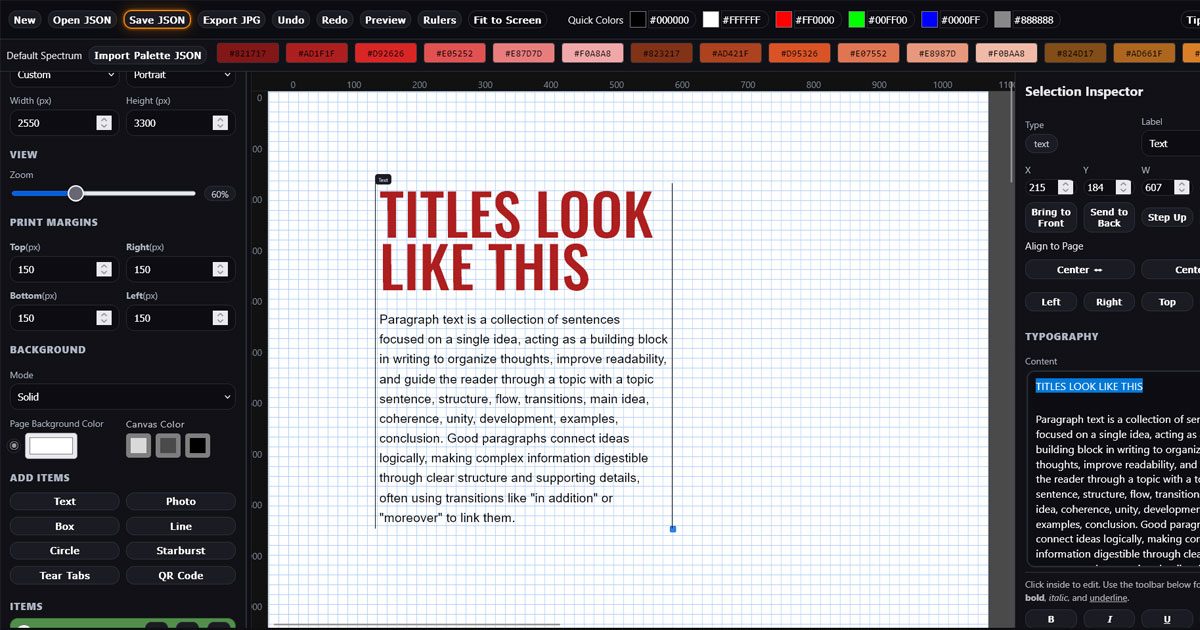
GridSmith is organized around four working areas, so the controls stay predictable as your design gets more complex.
Moving around the canvas
- Fit to Screen frames and centers the whole page. Press F anytime you are not typing into a text field.
- Magnifier uses Z. Click to zoom in, drag a box to zoom into an area, and Alt/Option-click to zoom out.
- Click the Hand tool to pan, or hold Space and drag to pan temporarily.
- 100% is 1. Use +/= and − to zoom in and out.
- Workspace Color changes only the area around the poster to white, grey or black.
Page, grid & layout system
GridSmith separates the visible pixel grid from the modular Layout System. They solve different jobs and can be used together.
Page setup
Choose Letter, Legal, Tabloid, half-page and quarter-page presets, switch portrait or landscape, or select Custom and enter your own pixel dimensions.
Pixel Grid
- Set Grid Size, line thickness, line color and opacity.
- Use Show Grid or press G to toggle it.
- The grid is normally an editing aid. Turn on Include Grid in Export only when you actually want it in the JPG.
Print margins and White Margins
Show print margins is a visual guide. White Margins creates a real white border inside the page, with an adjustable width, and that border is part of the finished design.
Layout System
The Layout System adds editor-only structure for deliberate composition. Set columns, rows, independent gutters and four layout margins. Optional Baseline Grid and Major Axes give you additional rhythm and alignment references.
- Press S or use Structure to show or hide the layout structure.
- Snap to Guides snaps object edges and centers to margins, columns, rows, baselines and axes.
- Hold Shift while dragging to temporarily bypass guide snapping.
- Each object can carry an Object Spacing Guide, including quick presets of half a gutter, one gutter and two gutters.
Backgrounds
A GridSmith page can use a solid color, gradients, a single image or a repeating tile.
| Mode | What you can control |
|---|---|
| Solid | Page background color. |
| Linear Gradient | Two colors plus gradient angle. |
| Radial Gradient | Inner and outer colors, radius and draggable center. |
| Single Image | Upload or Pattern Library, fit mode, position and opacity. |
| Tiled Image | Upload or Pattern Library, X/Y repeat, tile size, opacity and offsets. |
You can also drag a Palette Bar or Quick Color chip directly onto the page to switch the background to that solid color. Undo will restore the previous background.
Adding items
Click a Quick Add icon above View to place an object immediately. The full Add Items section has labeled buttons and the asset libraries. Each item remains independently selectable and editable.
| Item | Use it for |
|---|---|
| Text | Headlines, body copy and rich typography with Google Fonts, inline styling, tracking, leading, paragraph spacing, blend modes, transforms and shadow/glow. |
| Photo | Placed images with Fit Vertically, Fit Horizontally or Fill Frame, plus positioning, opacity, blend, borders, corner radius, skew and shadow. |
| Box | Solid, gradient and radial-filled rectangular shapes with borders, corner controls, transforms and blending. |
| Line | Styled rules and decorative lines, including caps, dot spacing, angle, opacity, blending, faded ends and shadow/glow. |
| Circle | Circles and rounded shapes with fills, gradients, borders, roundness, transforms, blending and shadow/glow. |
| Starburst | Adjustable radial bursts with spike count, inner/outer radius, fill, border, edge fade, transforms and effects. |
| Tear Tabs | Repeated tab strips with strong/sub text, fonts, colors, alternate stripes and cut-line styling. |
| QR Code | Generate a QR from a URL or other data, then set size, margin, foreground, background and effects. |
| Pattern Library | Add PatternSmith artwork directly into the design. |
| SVG Library | Add vector artwork from the shared SVG library. Selected SVGs are embedded into the GridSmith design. |
Select, arrange & align
GridSmith supports both visual dragging and precise numeric editing, so you can work loosely or exactly.
Selecting
- Click an object to select it.
- Drag on empty space to draw a multi-selection box.
- Hold Shift while clicking objects to add or remove them from a selection.
Precise geometry
The Selection Inspector exposes X, Y, W and H for the selected object. Rotation controls are available for ordinary objects as well.
Stacking and alignment
- Bring to Front, Send to Back, Step Up and Step Down control stacking order.
- Align a single object to the page using left, right, top, bottom, horizontal center or vertical center.
- With multiple objects selected, GridSmith provides alignment and horizontal/vertical distribution controls.
Fast movement
- Arrow keys move the current selection by 1 pixel.
- Shift + Arrow moves the selection by 50 pixels.
- In X/Y/W/H number fields, hold Shift while using the field's up/down controls to jump by 100 pixels.
- Ctrl/Cmd + D duplicates with a small offset.
- Ctrl/Cmd + Shift + drag duplicates while placing.
- Delete or Backspace removes the current selection.
Typography
Text stays editable while you work, with both box-level controls and inline rich-text styling.
- Add a Text box, then click the text on the page and type. New boxes select “Click to type” so typing replaces it. You can also edit in Typography → Content in the Selection Inspector.
- Click between letters or at the end of a line to place the blinking blue caret. Double-click a word, or drag across text, to select it.
- Use Bold, Italic, Underline, All Caps or Color to format the selection. You can also click a palette swatch to color text highlighted on the page.
- Selected text stays highlighted while you format it. Click elsewhere in the box to clear the highlight and place the caret. Press Esc or click outside the box to finish editing.
- While editing, Ctrl + A (Cmd + A on Mac) selects all text in the active box, on the page or in the Content field.
- Set size up to 2000 px, weight from 100 through 900, alignment, color, tracking, leading and paragraph spacing.
- True Italic loads real italic faces when the chosen font provides them.
- The Google Font Browser provides search, visual previews, categories, weights, Recent and Favorites. On desktop it can also pop out into its own window.
- Text supports opacity, blend modes, X/Y skew, and shadow/glow.
Convert to Paths
For large display type, Convert to Paths turns supported Google Font text into embedded SVG glyph outlines. This gives you true vector artwork for unlimited scaling.
Photos & SVG artwork
Raster photos and vector artwork use different inspectors, but both remain fully integrated into the same layout workflow.
Photos
- Add a Photo box, then click the highlighted Upload Photo button in the Selection Inspector.
- The frame matches the photo’s proportions automatically. If you’ve already adjusted the width or height or dragged the resize handle, GridSmith keeps your dimensions.
- Choose Fit Vertically, Fit Horizontally or Fill Frame to control how the image sits in the frame.
- Image Position X/Y sliders work with Fill Frame mode.
- Adjust opacity, blend mode and X/Y skew.
- Add a border, linked or individual corner radii, and shadow/glow controls.
SVG artwork
- Add artwork through SVG Library and recolor it without losing the embedded source.
- Adjust color, opacity and blend mode.
- Use shape-following drop shadow and glow controls.
- Replace an SVG from the library while keeping the GridSmith workflow intact.
Colors & palettes
GridSmith is designed so a color can move quickly between the palette, the page and object controls.
Palette Bar
- The default spectrum appears directly below the top bar.
- Choose Import Palette JSON to load your own palette. GridSmith accepts Palette Grabber style palette data and other simple hex-based palette files.
- Highlight text on the page, then click a palette chip to color just that selection. Otherwise a click applies the swatch to the last-used color field, if available, and copies its hex value.
- Drag a palette chip onto any compatible color control.
- Drag a palette chip onto the page itself to make it the solid page background.
- Hold Shift while using the mouse wheel to scroll horizontally along the palette row.
Quick Colors
The six top-bar slots are your temporary working colors. Enter a hex value, use the color picker, drag a Palette Bar chip into a slot, or drag the small grab-dot beside an Inspector color into a Quick Color slot.
LayoutSmith templates
The Templates button connects GridSmith to LayoutSmith, so you can start with a structured composition instead of a blank page.
Choose Templates to browse LayoutSmith. A selected layout can return directly to the GridSmith window that opened it.
If a template includes its own Layout Grid, GridSmith asks what to do:
Save, open, preview & export
GridSmith keeps editable projects and finished output separate, which makes experimentation much safer.
Save JSON
Downloads the editable GridSmith project. GridSmith asks for a filename and remembers the current working name for later saves.
Open JSON
Loads a previously saved GridSmith project. After opening, the page is automatically fit into the visible workspace.
New
Clears the current layout after asking for confirmation.
Preview
Click Preview or press H to show or hide the design preview without editing guides. Esc also exits Preview.
Export JPG
Choose from 16, 23, 72, 120 or 300 dpi, review the resulting pixel dimensions, choose Low, Medium or High JPEG quality, and optionally include the Pixel Grid.
Keyboard shortcuts
The most useful GridSmith shortcuts in one place.
| Shortcut | Action |
|---|---|
| F | Fit page to the visible workspace. |
| G | Show or hide the Pixel Grid. |
| S | Show or hide Layout Structure. |
| H | Show or hide Preview. |
| Esc | Finish editing text or exit Preview or the active navigation tool. |
| 1 | Set zoom to 100%. |
| + / = | Zoom in. |
| − | Zoom out. |
| Z | Magnifier tool. Click to zoom in, drag a box to zoom to an area, Alt/Option-click to zoom out. |
| Hold Space and drag | Pan temporarily with the Hand tool. |
| Ctrl/Cmd + A | Select all text in the active text box while editing. |
| Ctrl/Cmd + Z | Undo. |
| Ctrl/Cmd + Shift + Z | Redo. |
| Ctrl/Cmd + D | Duplicate selected object. |
| Delete / Backspace | Delete selection. |
| Arrow keys | Nudge selected objects 1 pixel. |
| Shift + Arrow | Nudge selected objects 50 pixels. |
| Shift while dragging | Temporarily bypass Snap to Guides. |
Letter shortcuts such as H and F are paused while you type in a text box or text field.