
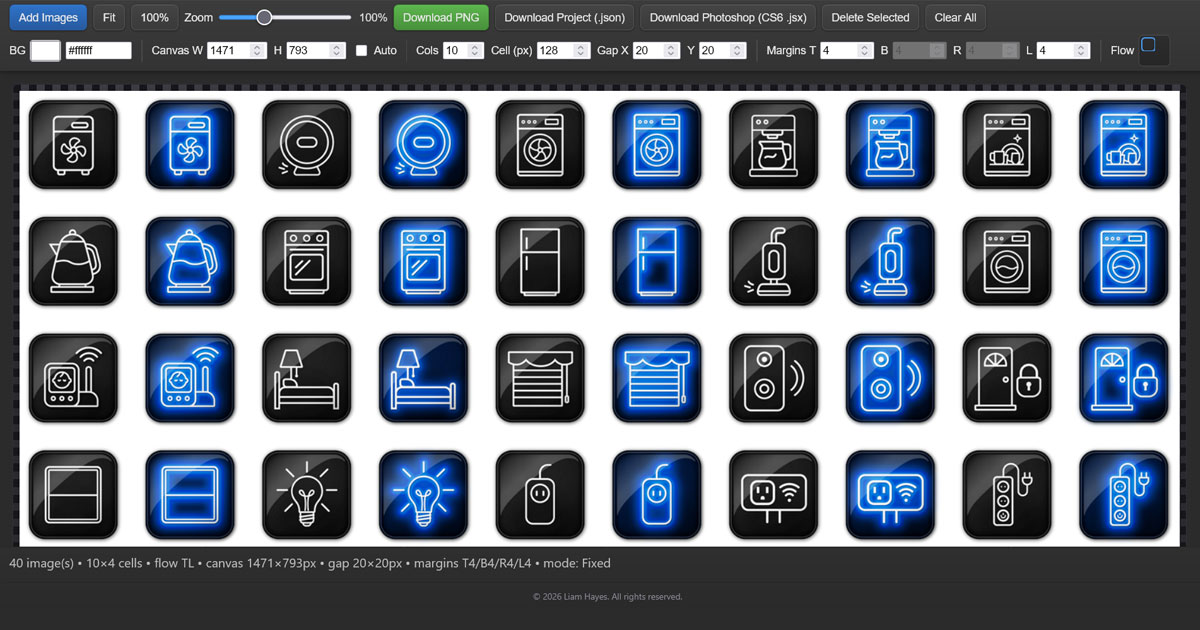
Quick start
Build a clean grid in a few minutes.
.jsx script that rebuilds the grid with the original files.Grid Builder in the Green Macaroni ecosystem
Grid Builder is a focused production utility: it turns a folder or selection of prepared images into a consistent image grid.
Images can be corrected in FilterSmith, converted into print-style artwork in InkSmith, or isolated on transparency in CutoutSmith before being arranged here. The finished PNG can then be used as a single placed image in GridSmith or other design software.
What Grid Builder does
Grid Builder solves the repetitive geometry involved in laying many images into equal square cells.
Every loaded image is fitted proportionally inside a square cell. Grid Builder preserves the whole image rather than cropping it: the image is scaled until it fits within the cell, then centered horizontally and vertically.
The layout is calculated from five basic ideas:
- Columns determine how many images appear across each row.
- Cell size determines the width and height of each square image area.
- Gap X and Gap Y control the horizontal and vertical space between cells.
- Margins add space around the outside of the grid.
- Flow determines which corner contains image 1 and which direction the sequence grows.
The number of rows is automatic. As more images are added, Grid Builder calculates the rows needed for the chosen column count.
Workspace & controls
The interface is intentionally compact: layout controls stay in the two-row toolbar while the canvas remains the main visual proof.
Top row
| Control | Purpose |
|---|---|
| Add Images | Choose one or more image files from the device. |
| Fit / 100% / Zoom | Control only the on-screen viewing scale. They do not change export dimensions. |
| Flow | Choose the starting corner: TL, TR, BL or BR. |
| Download PNG | Export the current rendered canvas as a PNG. |
| Download Project (.json) | Save the current layout settings and embedded image data to JSON. |
| Download Photoshop (CS6 .jsx) | Generate a Photoshop script that recreates the layout using the original source files. |
| Delete Selected / Clear All | Remove one selected image or empty the working image list. |
Second row
This row contains Background, canvas dimensions, Auto sizing, Columns, Cell size, Gap X/Y and the four outer margins.
Status bar
The status bar is more than a message area. It reports the current image count, calculated columns × rows, flow, canvas dimensions, gaps, margins and Auto/Fixed mode. In fixed-canvas mode it also warns when the calculated grid has exceeded the available canvas.
Adding images
Add many source images at once or drag them directly onto the page.
Add Images
Click Add Images and choose any files the browser recognizes as images. Multiple files can be chosen in one operation.
Drag and drop
On desktop, image files can also be dragged from the operating system and dropped anywhere onto the Grid Builder page.
Import order
New images are appended to the existing list. Their visual position is determined by list order plus the selected Flow corner. If the order is not what you need, drag cells to swap positions after loading.
How images fit
Grid Builder uses proportional contain fitting. Tall, wide and square images can therefore share the same cell size without being distorted. Empty space inside a cell is simply left as the canvas background color.
Grid geometry
The layout math updates immediately as values change.
Columns
Cols accepts 1–64 columns. Rows are calculated automatically from the image count. Eight columns is the default.
Cell size
Cell (px) accepts 16–1024 px and defines a square cell. The default is 128 px.
Horizontal and vertical gaps
Gap X controls space between columns. Y controls space between rows. They are independent and accept 0–256 px.
Margins
Top, Bottom, Right and Left margins accept 0–2000 px. In Auto mode all four margins contribute directly to the calculated canvas size.
Flow & starting corner
Flow controls where image 1 begins and the direction in which the grid is filled.
| Flow | Image 1 starts | Sequence |
|---|---|---|
| TL | Top-left | Across to the right, then downward. |
| TR | Top-right | Across to the left, then downward. |
| BL | Bottom-left | Across to the right, then upward. |
| BR | Bottom-right | Across to the left, then upward. |
The small blue square inside the Flow control shows the currently active starting corner.
Why flow matters
Flow is useful when the grid needs to grow away from a specific edge, when a sequence needs to read from the opposite side, or when a fixed-size composition has a preferred anchoring corner.
Auto & fixed canvas
Auto mode lets the grid determine the canvas. Fixed mode makes the grid live inside dimensions you specify.
Auto mode
Auto is enabled by default. Grid Builder calculates Canvas W and H from the required rows, columns, cell size, gaps and all four margins. The width and height fields update automatically.
Fixed mode
Turn Auto off when the output must stay at an exact canvas size. Canvas W and H then become the controlling boundaries. The app allows values from 32–20,000 px.
Anchored margins in fixed mode
When the canvas is fixed, only the margins connected to the selected Flow corner remain active. For example, Top-Left flow uses Top and Left margins; Bottom-Right uses Bottom and Right. This keeps the grid anchored from the corner that actually controls its origin.
Overflow warning
If the cells, gaps and active margins require more room than the fixed canvas provides, the status bar adds WARNING: Images have exceeded canvas. Increase the canvas, reduce the cell/gap values, reduce columns, or change the arrangement.
Select, reorder & delete
Grid Builder keeps ordering deliberately simple.
Select an image
Click an occupied cell. The selected cell receives a blue outline and Delete Selected becomes available.
Reorder by dragging
Drag a selected image over another occupied cell. The two entries swap positions immediately. Continue dragging across additional cells to keep rearranging the sequence.
Delete Selected
Removes the selected image from the list. Later images close up automatically into the remaining sequence.
Clear All
Empties the image list while leaving the current grid-control values in place.
Zoom & inspection
Viewing controls affect only the browser preview.
- Fit scales the canvas to fit the available workspace width.
- 100% returns the preview to one browser display pixel per canvas pixel.
- Zoom ranges from 5% to 300%.
The actual canvas dimensions shown in Canvas W/H and used for PNG/JSX export do not change when zoom changes.
If the window is resized while the preview is at the calculated Fit scale, Grid Builder recalculates the Fit percentage automatically.
Download PNG
Export the current browser canvas as one flattened image.
Download PNG exports exactly what the grid canvas contains: background color, fitted images, gaps and margins at the actual canvas dimensions. The blue selection outline is part of the editing display and is not intended as content.
The downloaded filename begins with grid2ps_export_ followed by a timestamp.
Useful destinations
- Place the PNG into GridSmith as one precomposed image block.
- Use it as a web/contact-sheet image.
- Open it in an image editor for further finishing.
Download Project (.json)
Save a readable record of the current Grid Builder layout and its embedded images.
The JSON contains the app version, background color, columns, cell size, X/Y gaps, canvas size, Auto setting, Flow, all four margins and each loaded image as a filename plus embedded data URL.
The file is currently downloaded as grid2ps_project.json.
Because the JSON can contain full embedded image data, a project containing many large images can become a large file.
Photoshop CS6 JSX export
This is Grid Builder’s distinctive production feature: it converts the browser layout into a script Photoshop CS6 can rebuild from your original files.
What the script records
The exported .jsx contains the current canvas width and height, background color, and a placement record for every image: its original filename, target cell center and cell size.
Before running it
- Keep the original image files used in Grid Builder together in a folder.
- Do not rename the files after creating the script. The JSX looks for the exact source filenames.
- Download the Photoshop CS6
.jsxfrom Grid Builder.
Run it in Photoshop CS6
In Photoshop CS6, run the downloaded script using Photoshop’s script-loading workflow, such as File > Scripts > Browse…, then choose the JSX file.
The script asks you to select the folder containing the original images. It then creates a new RGB document at the Grid Builder canvas dimensions, fills the chosen background color, creates a group named after the selected folder, places each found image, scales it proportionally to fit the target square cell, centers it in that cell and names the layer from the source filename.
Missing source files
If the selected folder does not contain one or more expected filenames, the script continues with the files it can find and reports the missing names at the end.
Mobile use & keyboard controls
The browser interface wraps to smaller screens, but Grid Builder remains most comfortable on desktop when organizing many images.
Mobile
- Add Images uses the device’s normal image picker. On supported phones, that picker may offer the photo library and/or camera.
- Grid geometry, background, Flow, zoom and exports remain browser controls and can be changed on touch devices.
- The current reorder interaction is implemented with desktop mouse dragging, so fine reordering is better suited to a mouse/trackpad in this build.
- Large image sets can use substantial browser memory, particularly when downloading project JSON with embedded image data.
Keyboard
| Key | Action |
|---|---|
| Delete / Backspace | Remove the currently selected image. |
| Enter | When the Background hex field is focused, validate and apply the entered #RRGGBB value. |
Privacy & local processing
Grid Builder performs its image work in the browser.
- Selected images are read locally by the browser.
- The grid is drawn locally to the HTML canvas.
- PNG, JSON and JSX files are generated locally for download.
- The Photoshop JSX references the original filenames but does not contain or transmit the original image files.
- The current build contains no image-upload endpoint.
Normal web-server access still occurs when loading the Grid Builder page itself and its site assets, but the images you select for a grid are not sent to Green Macaroni by this app.
Troubleshooting
Most problems come down to fixed-canvas overflow, source-file naming or confusing preview zoom with actual output size.
The status bar says the images exceeded the canvas
Auto is off and the calculated grid is larger than Canvas W/H. Increase the fixed canvas size, reduce Cell or gaps, use fewer columns, or turn Auto back on.
My images do not fill the square cells
This is intentional. Grid Builder uses proportional contain fitting so the whole image remains visible. A non-square source image will leave background space on two sides of its square cell.
The PNG is larger or smaller than the on-screen preview
Fit and Zoom only change display scale. The exported PNG uses the real Canvas W × H dimensions.
Photoshop says files are missing
The JSX looks for the exact original filenames in the folder you select when the script runs. Put the expected images together in one folder and make sure they have not been renamed since the JSX was generated.
The Photoshop layout does not match after I changed Grid Builder
Download a new JSX after making layout changes. The script is a snapshot of the geometry at the moment it was generated.
I downloaded a project JSON but cannot open it in Grid Builder
That is a limitation of this build. It saves the project record but does not currently include an Open Project command.
Delete Selected is disabled
Click an occupied image cell first. The button activates only when an image is selected.
The Background hex value reverted
The field accepts a six-digit RGB value in #RRGGBB form. An invalid entry is replaced by the current color-picker value.