
Quick start
The shortest path from a folder of glyph artwork to a balanced, organized image-font set.
Where Glyph Balance fits in Green Macaroni
Glyph Balance is the assessment and organization stage for image-based alphabets and pictorial character sets.
Use the image tools first when the source artwork needs cleanup, transparency or a print-style treatment. Bring the resulting character images into Glyph Balance to compare scale and alignment as a complete set. From there, the exported raster alphabet can be used directly in layouts or taken into Vectorwright when scalable SVG artwork is needed.
What Glyph Balance Table does
This is not a font editor. It is a visual assessment, adjustment and export system for image-based glyphs.
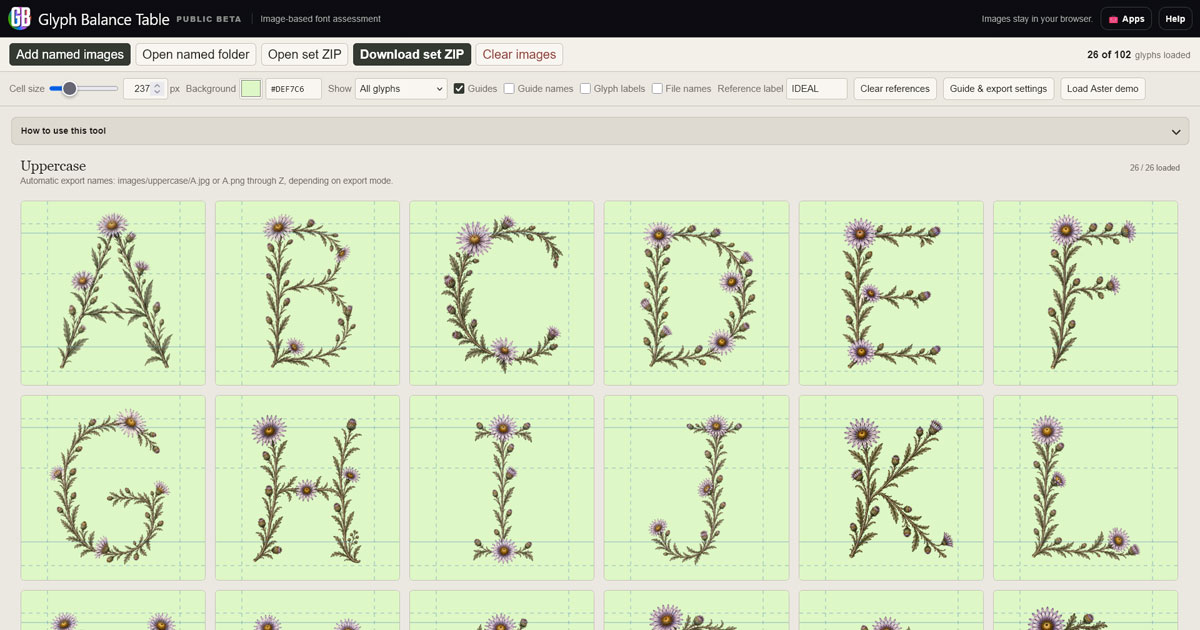
Each character occupies a square cell. That cell becomes a consistent measuring frame, with typographic guide lines layered over the artwork. Because every character is viewed in the same system, differences in height, vertical placement, side-bearing feel and optical center become much easier to spot.
- Supports a fixed 102-character assessment set: uppercase, lowercase, numerals and common punctuation/currency/title symbols.
- Accepts PNG, JPG, WebP, GIF and BMP images when the browser can decode them.
- Stores loaded source images locally in browser IndexedDB when available.
- Lets you apply non-destructive per-glyph position, scale, rotation, crop and padding corrections.
- Lets you compare up to three glyphs or overlay two glyphs, including temporary revision images that do not enter the main table.
- Creates automatically named JPG or transparent PNG exports and a reusable project ZIP.
- Creates a landscape PDF presentation containing the loaded glyph set and current guide/reference choices.
The 102-glyph workspace
The table is divided into four sections so every character has a predictable destination and export name.
| Section | Slots | Export location |
|---|---|---|
| Uppercase | 26: A–Z | images/uppercase/ |
| Lowercase | 26: a–z | images/lowercase/ |
| Numerals | 10: 0–9 | images/numerals/ |
| Symbols | 40 punctuation, currency and title symbols | images/symbols/ |
Completion counters
The top bar reports the number loaded out of 102, and each section keeps its own loaded count. This makes it easy to see whether the set is complete without manually scanning every cell.
Cell size
Cell size changes the visual working size from 150 to 520 px. It changes the display, not the source artwork or export resolution.
Show filter
Filter the table to All glyphs, Loaded only, Missing only, or References only. The Missing view is especially useful near the end of a large set.
Labels
Toggle Guides, Guide names, Glyph labels and File names independently. Hiding labels gives the table a quieter visual proofing mode; showing filenames is useful when diagnosing import naming.
Loading glyph images
Work cell-by-cell, or bulk-import an already organized set without renaming the originals.
Load one glyph
Drop an image directly onto the intended cell or use the cell’s upload control. The source filename can be anything. The destination cell determines the standardized export name.
Add named images
If files already use target names, Add named images can place many of them automatically. Single-letter uppercase names map to uppercase cells, lowercase names map to lowercase, digits map to numerals, and recognized descriptive symbol names map to the symbol section.
Open named folder
Folder import is even more reliable when the source contains folders named uppercase, lowercase, numerals and symbols. Those folder names remove ambiguity between characters such as uppercase A and lowercase a.
Recognized symbol filenames
The symbols section uses descriptive stems such as Ampersand, Question, QuoteDoubleOpen, Euro, Trademark and similar names. The empty cell shows the target filename.
File limits
Each source image is limited to 80 MB. Unsupported or unreadable files are skipped and reported rather than replacing a valid cell.
Typographic guides and display controls
The guide system turns a grid of pictures into a consistent visual measurement environment.
Default guide positions
| Guide | Default | Meaning |
|---|---|---|
| Ascender | 12% | Reference height for ascenders and taller forms. |
| Cap height | 17% | Reference top for uppercase forms. |
| X-height | 39% | Reference height for lowercase body forms. |
| Baseline | 79% | Main vertical landing line for most glyphs. |
| Descender | 92% | Reference depth for descenders. |
| Left / right margins | 14% / 86% | Horizontal guide box for optical width and centering. |
All guide positions are percentages of the square cell, so they scale with the workspace and remain consistent across glyphs.
Guide appearance
Change guide opacity from 0–100%, guide thickness from 0.5–8 px and the guide color. Light guide colors automatically receive darker label backgrounds so guide names remain readable.
Background color
The Background picker and hex field control the color shown behind transparent glyphs. This is a display aid until you choose to bake that color into JPG export.
Reset settings
The settings panel can return guide and export controls to their defaults without clearing the loaded glyph images.
Reference glyphs
Reference cells let you designate strong examples that the rest of the set can be judged against.
Click a loaded cell away from its action buttons to mark it as a reference. Pressing Enter or Space while the cell itself is focused does the same thing.
The default badge says IDEAL, but the Reference label field lets you change that wording to anything up to 24 characters, such as “MASTER”, “TARGET” or “APPROVED”.
- Use References only in the Show menu to isolate the chosen standards.
- Clear references removes all reference flags without deleting any images.
- The PDF export carries reference badges into the presentation.
- Reference choices are stored in the reusable project ZIP.
Review & adjust individual glyphs
The review workspace lets you correct placement non-destructively while keeping the original image intact.
Open Review & compare
Use the full-screen review button on a loaded cell, or the main Review & compare button. The Inspect tab opens one glyph at a time and provides both visual inspection and adjustment controls.
Position and geometry
| Control | Range / behavior |
|---|---|
| Horizontal / Vertical | Move the glyph from -50% to +50% of the square. Arrow buttons provide quick nudges. |
| Scale | 25%–300%. Reset 100% returns only the scale to the source size relationship. |
| Rotate | -15° to +15°. |
| Crop edges | 0–45% inset from each edge. |
| Add padding | 0–45%, reducing the image inside the square. |
Snap tools
- Snap top to cap height aligns the visible top geometry to the cap-height guide.
- Snap bottom to baseline aligns the visible bottom geometry to the baseline.
- Snap to optical center centers the glyph geometry inside the current left/right and cap/baseline guide box.
- Reset original placement removes all non-destructive adjustments for that glyph.
Zoom, Fit and full screen
The review canvas has its own Zoom control plus Fit, 100% and Full screen. The Inspect mode also has an independent Show guides switch.
Compare, blink and overlay
Use comparison modes to judge proportion, alignment and changes between versions more critically.
Compare up to three glyphs
The Compare tab can show Glyph A, B and C. Choose Side-by-side, Split-screen or Blink comparison. Split-screen adds a movable split position.
Analysis overlays
Comparison can show guides, matching bounding boxes and center marks. Ignore background fill color can help when otherwise identical glyph artwork was exported against different solid backgrounds.
Overlay two glyphs
The Overlay tab superimposes Glyph A and Glyph B. Control which glyph is on top, adjust top opacity from 0–100%, flip the layer order, or blink the top layer on and off.
Temporary revision images
Add revision image(s) lets you compare earlier or alternate versions without placing those files into the 102-cell table. Revision files remain temporary comparison material and are not treated as part of the project’s main glyph set.
Transparency and background testing
Transparent artwork can be evaluated against any display color before you decide how the exported files should be built.
Use the Background color picker or its matching hex field to test transparent PNG glyphs against white, black, paper colors, brand colors or any other backdrop. Opaque artwork does not change because its own pixels already cover the square.
Display background versus export background
The working Background color and the Export background toggle are connected but not identical:
- Export background ON: the current Background color is baked into square JPG files.
- Export background OFF: the generated files are transparent PNGs and the display background is not baked in.
Image export settings
Choose how the standardized output copies are rendered without altering the source files.
Square size
Choose Source size, 1024, 1536, 2048 or 3072 px. Source size uses the larger source dimension as the square output size, clamped by the app to a safe range.
Image fitting
- Contain whole image keeps the entire source visible inside the square.
- Crop to fill square scales until the square is filled and trims overflow.
JPG quality
When Export background is ON, JPG quality can be set from 70–100%. The default is 94%.
Apply glyph adjustments to ZIP export
Leave this checked when you want the downloaded image set to include the position/scale/rotation/crop/padding corrections made in Review. Turn it off when the ZIP should contain standardized copies of the unadjusted source placement.
Download set ZIP
The ZIP is both a delivery package and a reopenable project.
Automatically named output
Generated files are placed into four predictable folders:
images/uppercaseimages/lowercaseimages/numeralsimages/symbolsLetters and numerals use their characters as filenames. Symbols use descriptive names. The extension is JPG when a background is baked in and PNG when transparency is preserved.
Project sources
The ZIP also contains matching project-sources folders holding the original uploaded files. Those originals are what make reopening non-destructive: corrections are restored as adjustment settings instead of being permanently baked into already-adjusted pixels.
Manifest and README
glyph-balance-project.json records guide settings, display settings, reference selections, non-default glyph adjustments, export settings and file metadata. README.txt explains the folder structure and export mode.
Download PDF
Create a client-ready landscape proof of the currently loaded glyphs.
The PDF is built locally in the browser and includes the loaded glyph artwork, current background, visible guide lines, labels and reference badges. The app automatically creates as many landscape pages as needed for the set.
This is useful for reviewing a pictorial alphabet away from the editing interface, sending a proof to a client, or comparing the overall visual rhythm of the set in a fixed document.
Saving, persistence and reopening
Glyph Balance combines automatic local persistence with a portable ZIP project.
Automatic browser persistence
Loaded images are stored in the browser’s private IndexedDB database when available. Reference choices, guides, display controls, export settings and non-destructive adjustments are stored locally as well. Returning to the app in the same browser can therefore restore the working set automatically.
Open set ZIP
Use Open set ZIP for a portable project downloaded from Glyph Balance. The project manifest restores supported guide, display, reference, adjustment and export settings, while project-sources provides the original uploaded images.
Clear images
Clear images removes the current images, references and adjustments from the browser project after confirmation. It does not affect ZIPs or PDFs you have already downloaded.
Aster demo
Load Aster demo loads the built-in uppercase demonstration set and marks one sample as a reference. It is useful for learning the interface without preparing your own files first.
Mobile use and keyboard controls
The core workflow is browser-based and works with touch, but some bulk-import conveniences depend on what the mobile browser exposes.
- Tap a cell’s upload control to choose an image with the device file picker.
- Review, zoom, comparison and overlay controls are available without a desktop application.
- Folder import support varies by browser/device. If a mobile browser does not expose folder selection, use individual files or Add named images instead.
- Large image sets consume browser memory and local storage, so desktop remains the more comfortable environment for a complete 102-glyph project.
Keyboard controls
| Key | Action |
|---|---|
| Esc | Close any open modal or review dialog. |
| Enter / Space | Toggle a focused loaded glyph cell as a reference. |
| + / - | Increase or decrease Review zoom by 10% when the review viewport is focused. |
| ← / → | In Inspect mode, move to the previous or next loaded glyph when the review viewport is focused. |
Privacy and local processing
Your glyph artwork is processed locally in the browser.
- Image decoding, display, adjustments and comparison happen locally.
- Browser persistence uses private local IndexedDB storage when available.
- ZIP creation and PDF creation happen in the browser.
- There is no image-upload endpoint in this build.
- The app does not rename or modify your original source files.
If IndexedDB is unavailable, the app still works for the current session, but it warns that browser persistence is unavailable.
Troubleshooting
Most problems involve filename matching, browser storage, transparency expectations or Firefox canvas privacy protection.
A named image did not import
Check the target filename shown in the empty cell. For bulk folder import, use the uppercase, lowercase, numerals and symbols folders to remove ambiguity. Unmatched files are skipped and counted in the status message.
Uppercase and lowercase letters went to the wrong place
Loose single-letter filenames rely on case. A folder path is safer: placing A.png inside an uppercase folder forces it to the uppercase A slot, while a file inside lowercase is normalized to the lowercase destination.
My transparent PNG exported as JPG
Turn Export background OFF. When it is ON, the current Background color is intentionally composited behind the artwork and the output becomes JPG.
The exported adjustment seems missing
Make sure Apply glyph adjustments to ZIP export is checked. The source image and project data always remain non-destructive, but the rendered output only includes the corrections when that option is enabled.
Firefox produces black or corrupted exports
Firefox privacy protection or a canvas-blocking extension can deny image extraction. Glyph Balance tests for this before ZIP/PDF export. If the warning appears, allow Extract Canvas Data for Glyph Balance Table from Firefox’s site permissions, or permit the site in the relevant privacy extension, then try again.
My images disappeared after returning later
The browser may have cleared local site data, private browsing may be in use, or IndexedDB may be blocked. A downloaded set ZIP is the portable backup and should be used for important projects.
Review comparison is slow
Large source images and multiple overlays consume memory. Use reasonable source dimensions, close temporary revision images you no longer need, or reload the page after saving a project ZIP when working with a very large set.