
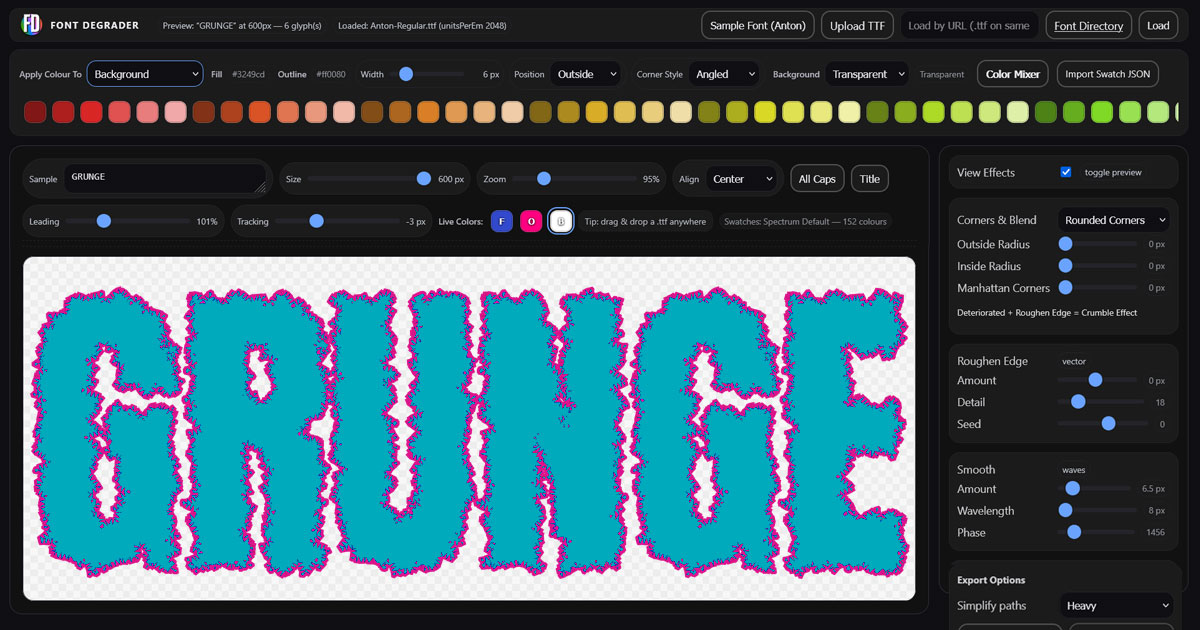
Quick start
The fastest route from a normal font to distressed vector lettering.
.ttf, drag a TTF onto the app, or load a same-site TTF by URL.Font Degrader in the Green Macaroni ecosystem
Font Degrader is a typography-artwork maker. Its SVG and PNG output is designed to move naturally into the rest of the Green Macaroni workflow.
For zine work, the usual path is Font Degrader artwork into GridSmith, then the completed page into ZineSmith.
What Font Degrader does
The app converts the outlines of a loaded TrueType font into editable-on-screen vector geometry, then reshapes those outlines before export.
Font Degrader is strongest for display type: poster titles, labels, logotype experiments, zine headlines, packaging-style lettering and decorative words where a perfectly clean digital outline feels too sterile.
What stays editable?
The Sample text remains live inside the app. You can change the wording, size, tracking, leading, alignment and effects at any time, and Font Degrader rebuilds the glyph outlines. After SVG export, the lettering is ordinary path geometry rather than live font text.
View Effects is a comparison switch
View Effects toggles the large stage between the original font outlines and the processed outlines. It does not disable the effects themselves. Export continues to use the processed geometry.
Loading fonts
This build of Font Degrader accepts TrueType .ttf files.
| Method | How it works |
|---|---|
| Sample Font (Anton) | Loads the built-in Anton sample so you can begin immediately. |
| Upload TTF | Choose a local .ttf from your computer or device. The font file is read in the browser. |
| Drag & drop | Drop a .ttf anywhere on the main canvas area. |
| Load by URL | Paste or drop the URL of a TTF, then Load. The field is intended for a .ttf hosted where the browser is allowed to fetch it; same-site URLs are the safest choice. |
| Font Directory | Opens the Green Macaroni font directory in a new tab so you can browse available sample faces and their URLs. |
.ttf.Uploaded fonts are not embedded in presets
A saved Font Degrader preset stores design settings, not the actual font file. If you reopen a preset later, load the same TTF first if you want the identical letterforms.
Character coverage
Available letters, symbols and language characters depend on the glyphs contained in the TTF you loaded. If a character is missing, use a font that includes it.
Text and composition controls
These controls determine the lettering before the degradation effects are applied.
| Control | What it changes |
|---|---|
| Sample | The live wording. The field supports line breaks for multi-line compositions. |
| Size | The actual size of the generated letter geometry, from 24 to 600 px. |
| Zoom | Changes only how large the artwork appears in the working stage, from 10% to 400%. It does not change export geometry. |
| Align | Left, Center or Right alignment. Multi-line text aligns against the width of the widest line. |
| All Caps | Temporarily converts the current wording to uppercase. Click again to restore the casing that was there when you turned it on. |
| Title | Applies title-style capitalization line by line. It is also reversible with a second click. |
| Leading | Line spacing for multi-line text, from 40% to 260% of the selected Size. |
| Tracking | Adds or removes horizontal spacing between characters, from −40 px to +80 px. |
Color, outline and background
The ecosystem palette bar keeps fill, outline and background styling separate from the geometry effects.
Apply Colour To
Choose Text Fill, Text Outline or Background. Clicking a swatch then sends that color to the selected role.
Font Degrader loads a built-in Spectrum Default set containing 152 swatches. You can replace that row with an imported swatch JSON file. The importer accepts arrays of hex colors, RGB objects, or objects containing a hex value, which makes it a natural companion to Palette Grabber.
Color Mixer
Open Color Mixer when the exact color is not already in the swatch row. Use the color picker or hex value, then Add to Swatches. The floating mixer can be dragged so it does not need to cover the lettering.
Live Colors
The small F, O and B buttons open the Color Mixer directly for Fill, Outline and Background.
Outline controls
| Control | Choices |
|---|---|
| Width | 0–40 px. |
| Position | Center straddles the edge, Outside expands away from the fill, and Inside clips the outline to the interior of the lettering. |
| Corner Style | Sharp, Rounded or Angled joins. |
Background
Choose Transparent, White, Black or Palette. Transparent is especially useful when the result will be placed over artwork in GridSmith or another design app.
Corners & Blend
The first stage of Font Degrader changes the underlying glyph contours before roughening or waves are added.
Rounded Corners
Use Outside Radius and Inside Radius independently so exterior corners and interior counters do not have to soften at the same rate. This can make a rigid display face feel printed, worn or hand-cut without simply blurring it.
Chamfered Corners
Uses the same radius controls but cuts corners into straight bevel-like transitions rather than arcs. It is useful for blocky, industrial or mechanically distressed lettering.
Manhattan Corners
This is a selective secondary corner treatment for particular right-angle, grid-like corners rather than a blanket change to every vertex. Increase it gradually and judge the actual word, because the visible result depends heavily on the structure of the typeface.
Deteriorated
Deteriorated replaces the radius controls with a more aggressive spike/crystal-style contour treatment.
| Control | Effect |
|---|---|
| Spike Length | How far the deteriorated projections extend from the contour. |
| Spike Width | Broadens the spike geometry. |
| Spike Spacing | Changes the distance between candidate spikes. |
| Reduce Spikes | Removes a percentage of the generated spikes for a less uniform result. |
| Jitter | Adds positional irregularity. |
| Sensitivity | Controls how readily eligible corners/areas receive the deteriorated treatment. |
Roughen Edge
Roughen adds irregular vector displacement around the contour. It is deterministic, so the Seed lets you search different versions without changing the overall strength.
| Control | What it means |
|---|---|
| Amount | Strength of the edge displacement, 0–40 px. |
| Detail | Controls the granularity/frequency of the roughened contour. Higher and lower settings can feel very different even at the same Amount. |
| Seed | Changes the random pattern while keeping the other settings intact. Use Seed to audition alternate distress shapes. |
Roughen is true vector geometry, not a raster noise filter. That means stronger settings can create many more nodes, which is why the Export Options panel includes node counting and simplification.
Smooth waves
The Smooth section adds a continuous wavy displacement to the processed contours.
| Control | Effect |
|---|---|
| Amount | Wave amplitude. At 0 px the wave stage is inactive. |
| Wavelength | Distance between the repeating rises and falls. Shorter wavelengths produce tighter movement; longer wavelengths produce broader bends. |
| Phase | Shifts the wave pattern along the contour, giving you alternate placements without changing Amount or Wavelength. |
Despite the label Smooth, this control is not an anti-aliasing or blur setting. It creates smooth geometric undulation in the vector outline.
How the effects combine
Font Degrader applies its geometry stages in a fixed order. Understanding that order makes combinations much easier to predict.
For example, if you choose Deteriorated and then add Roughen, the roughness is applied to the already-deteriorated contour. Waves are applied after both. This is why the same Roughen setting can look quite different under Rounded, Chamfered and Deteriorated modes.
A practical working method
- Get the wording, size and spacing right first.
- Choose the main corner personality.
- Add only enough Roughen to break unwanted cleanliness.
- Add Smooth waves last if you want broader organic movement.
- Then inspect node count and simplify for export.
Path simplification and node inspection
The Export Options preview shows the actual processed vector that will be exported, including path simplification.
Simplify paths
| Setting | Tolerance | Use |
|---|---|---|
| Off | 0 | Keep all generated nodes. |
| Light | 1.0 px | Small cleanup while preserving most detail. |
| Medium | 2.0 px | Stronger reduction for busy roughened contours. |
| Heavy | 3.5 px | Aggressive cleanup when file simplicity matters more than tiny edge detail. |
| Custom | 0–8 px | Choose the tolerance manually. |
The three counters report Original nodes, Simplified nodes and the percentage Reduction. These numbers are especially useful when Roughen or Deteriorated creates very dense geometry.
Magnifier
Move the mouse across the export preview to reveal the circular magnifier. Magnifier Zoom ranges from 1.5× to 60×, making it possible to inspect how closely simplification follows small contour details.
Presets and browser recovery
Font Degrader can save the current treatment as portable JSON and also remembers the latest settings in the current browser.
Save Preset
Downloads a JSON file containing the current text, size, zoom, tracking, leading, alignment, colors, outline settings, background mode, corner/deterioration settings, Roughen, Smooth, simplification and magnifier settings.
Load Preset
Reads one of those JSON files and reapplies the stored settings.
Automatic last-settings recovery
As controls change, Font Degrader stores the latest preset data in browser local storage. On a later visit it loads the built-in sample font and reapplies those remembered settings. If your previous design used a custom TTF, reload that TTF to restore the exact letter shapes.
Private browsing, browser cleanup, storage restrictions or using another browser/device can prevent local recovery. Portable preset JSON is the safer long-term record.
SVG and PNG export
Both export formats use the processed geometry, the current colors, outline and background, and the selected path simplification.
Export SVG
SVG is the preferred format when the lettering should remain scalable and editable as vector paths in another design tool. Transparent, white, black and palette-colored backgrounds are respected.
The filename is unique and includes the typed wording plus a date/time stamp, so repeated exports do not overwrite one another accidentally.
Export PNG
PNG rasterizes the same vector result. Choose 1×, 2×, 3× or 4×; the app displays the resulting pixel dimensions beside the selector before export. The default is 4×.
Transparent background mode produces a transparent PNG. White, Black and Palette modes render a solid background.
| Choose | When |
|---|---|
| SVG | You want resolution-independent lettering, further vector editing, recoloring, or use in GridSmith/ChromeSmith/PatternSmith as SVG artwork. |
| PNG | You want a ready-to-place raster result, especially with transparent background, or the destination does not need vector paths. |
Mobile use and control gestures
The layout collapses to a single-column workspace on narrower screens, while the palette controls and swatches remain horizontally usable.
- Below the desktop breakpoint, the canvas and effect sidebar stack vertically.
- On phone-width screens, the palette and control rows reflow and swatches remain compact touch targets.
- Use the ordinary file picker to choose a TTF, swatch JSON or preset JSON from device storage.
- The floating Color Mixer uses pointer controls and can be dragged on compatible touch/pointer devices.
Useful mouse/file gestures
| Gesture | Action |
|---|---|
Drag a .ttf onto the canvas | Load that font. |
| Paste a URL into Load by URL | Automatically triggers a load attempt after the paste lands. |
| Drag a URL onto the URL field | Fills the field and starts loading. |
| Move over export preview | Show and position the node magnifier. |
| Drag Color Mixer title/panel | Move the mixer so you can continue seeing the artwork. |
This build does not define a dedicated keyboard-shortcut set; the primary workflow is through the visible controls.
Troubleshooting
The most common issues are font-format limits, browser URL permissions, dense vector geometry and the distinction between preview controls and export controls.
My font will not load
Confirm that the file is a valid .ttf. This build does not parse OTF, WOFF or WOFF2. If the same font is available in multiple formats, choose its TrueType version.
Load by URL fails
Use a direct TTF URL that the browser is permitted to fetch. Same-site files are most reliable. If a remote host blocks cross-origin access, download the TTF and use Upload TTF instead.
Changing Zoom did not make the export larger
That is expected. Zoom is a workspace view control. Change Size for different vector geometry or PNG Size for higher/lower raster dimensions.
I turned off View Effects but the exported file is still degraded
View Effects is a preview comparison. Set the relevant effect Amount/Radius to zero, or choose different corner settings, to change the export.
The SVG has too many nodes
Try Light or Medium path simplification and inspect the magnified preview. Strong Roughen and Deteriorated settings naturally create dense contours.
Simplify paths changed the character too much
Back off to a lighter preset or use Custom with a lower tolerance. Node reduction is useful only when the visible letterform remains acceptable.
My preset reopened with the wrong font
The preset stores treatment settings, not the TTF. Reload the original font file, then load/apply the preset.
My imported palette is gone after reload
Imported swatch colors are not embedded in the saved preset. Keep the swatch JSON and import it again when needed.
I expected a modified font file
Font Degrader exports the current typed lettering as SVG or PNG artwork. It does not create a new TTF. Use it when you want custom treated typography as graphic artwork rather than a newly installable font.