
Quick start
The shortest path from source font to a new working OTF.
Where Font Degrader Pro fits in Green Macaroni
Pro is the typeface-making part of the ecosystem. It turns a compatible source font into a renamed derivative that can become part of later design work.
The important distinction is that Font Degrader Pro is not just styling one word. It edits a working typeface and exports an OTF. The Artwork Export section is there too, when you only need the current sample as SVG or PNG.
What Font Degrader Pro does
The app combines whole-font editing, per-glyph editing, font-safe export and graphic-artwork export in one browser workspace.
Two outputs, two purposes
| Output | Purpose |
|---|---|
| Working Typeface | A renamed, installable .otf representing the edited typeface. |
| Artwork Export | The current typed sample as SVG or PNG, useful when you need artwork rather than an installable font. |
Font sources, formats and licensing
Font Degrader Pro distinguishes between its verified OFL library and fonts you supply yourself.
Verified OFL Library
The built-in browser contains 96 verified static styles in 22 families. These are conventional outline fonts licensed under SIL Open Font License 1.1 and selected specifically for modification/export in this app.
- Use the source drop-down for quick selection.
- Browse Google Fonts opens the visual browser for this supported subset, not the entire unrestricted Google Fonts catalog.
- Search, Favorites, Recent, category tabs, weight filters, family-range filters and alphabet filters help narrow the list.
- Click a weight button in the browser to load that actual source font into the app.
- Pop Out opens the font browser in a separate resizable window while retaining the connection to Font Degrader Pro.
Upload Your Own Font
Switch the source mode to Upload Your Own Font to use a local TTF or OTF. User font files are processed locally and are not uploaded to Green Macaroni.
Compatibility limits
| Requirement | Current build |
|---|---|
| Input | Compatible static TTF or OTF outline fonts. |
| User font size | Maximum 15 MB. |
| Working-font glyph count | Maximum 1,500 source glyphs per export. |
| Variable fonts | Not exported. Choose a static font instance. |
| Color / SVG fonts | Not exported. Use a conventional monochrome outline font. |
Verified OFL exports keep the OFL and source copyright notices. Derivative names must also respect any Reserved Font Names from the source.
Canvas and preview controls
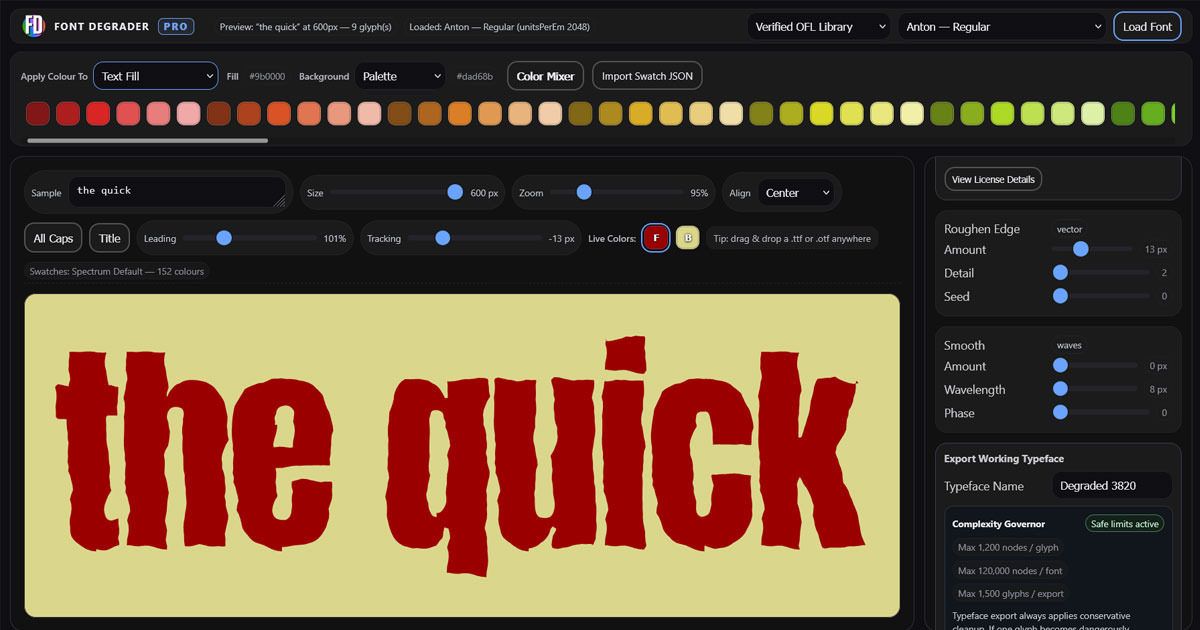
The large stage is both your design preview and the fastest way to select visible glyphs.
| Control | What it does |
|---|---|
| Sample | Type one or more lines of preview text. The source font remains fully available beyond the characters shown here. |
| Size | Sets the working preview size from 24 to 600 px. It also defines the reference scale used by some protection calculations. |
| Zoom | Changes only how large the stage appears on screen, from 10% to 400%. |
| Align | Left, Center or Right alignment for the sample. |
| All Caps / Title | Reversible sample-text helpers for evaluating different casing. |
| Leading | Controls line spacing for multi-line preview text. |
| Preview Tracking | Changes artwork/canvas spacing only. It is not written into the font. Use Global Font Spacing or per-glyph Spacing for font metrics. |
| View Effects | Toggles edited/effected preview versus the source appearance. It also affects glyph-edit display. |
| Hide Palette | Collapses the ecosystem palette bar to make more room for the canvas. |
Click a visible letter on the canvas to select its source glyph. Click empty canvas space to hide the selection marquee without losing the selection or its edits. Click the small selected-glyph preview to show the marquee again.
Generate New Weights
Use one geometric outline-shift control to make the whole compatible font lighter or heavier.
Outline shift (% of em)
The range is -4 to +8 with 0.05% precision. Negative values lighten the font; positive values thicken it. Four quick choices are included: Lighter (-0.5), Original (0), Heavier (+0.8) and Bold (+1.8).
Protect fine details and openings
This is on by default and is central to the current FDP11C behavior.
- When thickening: every glyph receives the full requested exterior shift. Protection acts locally on endangered closed inner openings so tiny fragile loops do not hold back the weight of an entire letter or digit.
- When lightening: fragile glyphs may receive a smaller safe shift to avoid broken strokes, merged components or lost details.
- Turning protection off allows the full requested geometry, including the possibility of shrinking or filling counters.
Minimum stroke
When lightening with protection enabled, Minimum stroke sets the desired clearance around inner openings at the chosen canvas Size, before Zoom and individual glyph transforms. The default is 2 px and the control ranges from 0 to 20 px. A value of 0 disables that clearance repair.
Weight Undo / Redo
Weight changes have their own Undo Weight and Redo Weight controls. Weight amount and protection settings are also saved in automatic settings, presets and complete projects.
What does not change automatically
Baseline positions and source layout positioning are retained. Advance widths remain unchanged by weight generation unless you separately edit glyph spacing or Global Font Spacing. Connected scripts should always be inspected in the actual generated OTF proof, especially after lightening.
Individual Glyphs
Edit the source glyph itself, not just one typed copy. Every occurrence of that glyph uses the same edit.
| Control | Range / behavior |
|---|---|
| Rotate | -180° to +180° around the glyph center. |
| Skew X / Y | -60° to +60°. |
| Up/Down | -100% to +100% of font size. Positive moves the glyph up. |
| Left/Right | -100% to +100% of font size. Positive moves right. |
| Width / Height | 10% to 300%. Link width & height is on by default. |
| Spacing | -100% to +100% of font size. This changes the next character position and is written into the exported font. |
| Effects | 0% to 100%. 100% follows Global Effects; 0% protects that glyph from Roughen/Smooth. |
| Flip Horizontal / Vertical | Mirrors the source glyph around its center. |
Width versus spacing
Changing Width normally leaves character spacing intact. Turn on Scale character spacing with width if you want the advance to scale with the glyph width too. Negative advances are never written.
Copy and paste edits
Copy Edits captures the complete transform/edit state for one glyph. Paste Edits applies that state to another selected glyph or group, depending on the current edit scope.
Selected group
Switch Edit from Selected glyph to Selected group after creating a group in Browse All Glyphs. Each changed control then applies the same value to the group as one glyph-history step.
Undo / Redo
Glyph edits have their own Undo Glyph Edit and Redo controls. With focus outside text fields and dialogs, Ctrl/Cmd + Z undoes glyph history and Ctrl/Cmd + Y or Shift + Z redoes it.
Browse All Glyphs
Inspect and select characters that are not present in your current sample before exporting the whole font.
The glyph browser shows the complete source glyph grid, including encoded characters, source alternates and unassigned records. Search by character, name, Unicode such as U+00E9, or glyph ID.
Filters
Show Effects & Edits lets you compare source outlines with the current working design inside the browser.
Group editing
- Enable Select a group.
- Click glyph tiles individually, or use Select Shown after filtering.
- Choose Edit Group.
- Use the Individual Glyph controls with Edit set to Selected group.
Spaces can be selected for spacing even though they have no visible outline. Unencoded source alternates that remain reachable through source layout rules can also be preserved in the OTF export.
Keyboard navigation
Inside the glyph browser, Esc closes the dialog. With a tile focused, the arrow keys move through the visual grid.
Shuffle Glyphs
Create repeatable irregularity across a typeface while keeping every copy of the same letter consistent.
Shuffle replaces only three properties for its target glyphs: rotation, up/down position and uniform size. It leaves skew, flips, left/right position, spacing and Effects strength intact.
| Setting | Range |
|---|---|
| Apply to | All mapped visible glyphs, Selected group, or Selected glyph. |
| Rotate | 0 to ±30°. |
| Up/down | 0 to ±20%. |
| Size | 0 to ±25%. |
| Seed | 0 to 999999. The same seed and settings reproduce the same variations. |
New Seed gives you another repeatable arrangement. Because the shuffle is source-glyph based, repeated letters do not randomly change from one occurrence to the next.
Global Font Spacing and preview tracking
These controls look similar in the sample, but only one changes the working font.
| Control | Written to OTF? | Use |
|---|---|---|
| Preview Tracking | No | Artwork-only spacing for the canvas and SVG/PNG sample. |
| Per-glyph Spacing | Yes | Add or remove advance after a particular source glyph. |
| Global Font Spacing | Yes | Adds spacing across the font from -20% to +50% em, including ordinary spaces. |
Global Font Spacing preserves zero-width marks unless you explicitly change their per-glyph spacing. The numeric field accepts decimal percentages, while its native spinner/arrow stepping uses 1-point steps.
Show Spacing Sample temporarily switches to a specimen designed for evaluating font spacing with Preview Tracking set to zero. Restore Preview Text returns to your previous sample, tracking and zoom.
Color, backgrounds and Green Macaroni palettes
Color is primarily an artwork-preview/export feature. It helps you evaluate the typeface in context while working.
- Apply Colour To targets Text Fill or Background.
- Background can be Transparent, White, Black or Palette.
- The live F and B buttons open the Color Mixer for Fill and Background.
- Palette swatches can be dragged directly onto the live Fill or Background targets.
- Import Swatch JSON accepts compatible Green Macaroni palette JSON.
- Hide Palette gives the canvas more vertical room while remembering palette visibility in saved settings.
Global Effects: Roughen Edge and Smooth
Global Effects operate across the whole typeface, including glyphs outside the current sample.
Roughen Edge
| Control | Meaning |
|---|---|
| Amount | 0 to 40 px of vector edge disturbance. |
| Detail | 2 to 40. Controls the scale/density of the roughened edge. |
| Seed | 0 to 9999. Reproduces a particular roughness pattern. |
Smooth waves
| Control | Meaning |
|---|---|
| Amount | 0 to 12.5 px. |
| Wavelength | 8 to 240 px. |
| Phase | 0 to 9999. Changes the wave position while keeping the same overall character. |
Each glyph’s Effects control can scale these Global Effects from 100% down to 0%. That is useful when one delicate character needs protection while the rest of the font keeps a stronger treatment.
Complete projects, presets and automatic recovery
There are three different ways to preserve work. They are intentionally not the same thing.
| Save method | Contains source font? | Best use |
|---|---|---|
Save Project (.fdp) | Yes | Complete portable work session with source font, licensing metadata, glyph edits, effects, colors, selected glyph and group selection. |
| Save Preset (JSON) | No | Portable treatment/settings recipe for an existing font workflow. |
| Automatic browser save | No portable file | Convenient local recovery of your latest settings in the same browser. |
Complete .fdp projects
A project is an ordinary uncompressed ZIP-based container with a .fdp extension. It is not an installable font. Reopen it through Save / Open Project. Projects larger than 18 MB are rejected, and the embedded source font still must fit the 15 MB user-font limit.
For verified library fonts, the app checks the embedded source bytes against the bundled source when reopening before treating it as a verified library font. For user uploads, permission confirmation is deliberately not restored automatically.
Presets
Presets store the active design values, including text, preview controls, colors, Roughen/Smooth, glyph design map, Global Font Spacing, weight settings, shuffle settings and export name. They do not embed an arbitrary user source font.
Export Working Typeface
This is the Pro workflow that creates a renamed installable OTF.
1. Choose a derivative Typeface Name
The new name must be at least two characters. For verified OFL library sources, it cannot contain the source family name or a protected Reserved Font Name. For user uploads, it cannot simply masquerade as the source family name.
2. Satisfy the rights and compatibility checks
Variable fonts, color/SVG fonts, fonts over 1,500 glyphs, and unconfirmed user-upload licensing block working-font export.
3. Let the Complexity Governor do its job
The exporter enforces a maximum of 1,200 outline nodes per glyph. The ordinary whole-font limit is 120,000 nodes. Protected lighter-weight exports that require tight counter-clearance geometry can use a higher 360,000-node whole-font budget while keeping the same per-glyph ceiling.
The app performs conservative cleanup and can stop an export when requested geometry cannot be represented inside the safety/fidelity limits. The Export Report shows glyph count, node total, maximum glyph complexity, extra optimization, source fallback and weight-protection information.
What is retained
The exporter keeps source glyph order and copies source GSUB, GPOS, GDEF, kern, BASE and JSTF layout tables when present and supported, so source substitutions and positioning remain connected to the original glyph references. Advance widths include Global Font Spacing and per-glyph spacing/width choices.
Unique versions
Every new export receives a timestamp/random version suffix in the OTF filename, ZIP filename, family/full name and PostScript identity. This lets multiple generated versions coexist instead of overwriting each other. Weight direction and amount are also included in filenames when a weight shift is active.
Inside the ZIP
- The generated installable
.otf. README.txtwith effect, weight and complexity details.- License information appropriate to the source, including OFL/source notice files for verified library fonts.
Library Compatibility Audit
Run 96-Font Audit sends every verified library font through the current effect, safety and OTF-writing path in memory. It does not download 96 font files. You can stop the audit and download its report.
Generated OTF proof
After export, inspect the actual generated font inside the browser instead of trusting the design preview alone.
Generated OTF tab
The proof uses a browser FontFace created from the exported OTF bytes. It includes a Character Set, pangram, Detail View and multiple specimen sizes.
Case controls
As Typed, All Caps, Title and lowercase work in both proof tabs. They change the proof sample without altering the live canvas.
Compare tab
Compare places the export-time dense design preview beside the actual generated OTF at the same nominal size. The comparison is frozen at export time, so later canvas edits do not rewrite the saved comparison.
Zoom and Detail View
Specimen Zoom ranges from 50% to 200%. The Detail View font size ranges from 12 to 500 px for close inspection of curves, counters, joins and script connections.
Download ZIP Again downloads the exact already-generated version again. It does not create another new version name or rebuild the font.
Artwork Export: SVG and PNG
When you need the current sample as graphic artwork instead of an installable font, use the separate Artwork Export panel.
Simplify paths
Choose Off, Light, Medium, Heavy or Custom tolerance. The preview reports Original nodes, Simplified nodes and percentage Reduction. Use the lowest simplification that still preserves the letterforms you want.
Magnifier
Hover the artwork preview to reveal the magnifier. Magnifier Zoom ranges from 1.5× to 60×. The lens hides when you leave the preview, scroll, resize, cancel the pointer or move focus away.
Export SVG
SVG keeps the current typed sample as scalable vector artwork, including fill/background choices and the active geometry.
Export PNG
PNG rasterizes the same sample. Choose the available PNG scale from the app and use Transparent background mode when you need alpha.
Mobile use and keyboard controls
The interface reflows for smaller screens, and the font/glyph browsers are designed to remain usable in constrained viewports.
- The Google Font Browser becomes a full-screen internal-scroll dialog on mobile.
- Font upload, project open, preset load and swatch JSON use the device’s ordinary file picker.
- Drag-and-drop font loading is primarily a desktop convenience. Local file upload remains the reliable mobile route.
- The glyph browser supports touch selection and group building.
Keyboard controls that matter
| Key | Action |
|---|---|
| Esc | Close the Google Font Browser, All Glyphs browser or Generated OTF proof when that dialog is active. |
| Arrow keys | Move keyboard focus through glyph tiles in Browse All Glyphs. |
| Ctrl/Cmd + Z | Undo glyph-edit history when focus is not inside an input/dialog. |
| Ctrl/Cmd + Y | Redo glyph-edit history. Shift + Z also triggers redo in the glyph editor. |
Most typeface operations intentionally use visible controls rather than a large hidden shortcut set.
Troubleshooting
Most problems fall into format limits, licensing checks, font complexity or the difference between preview controls and actual font metrics.
Download Font ZIP is disabled
Read the status message in Export Working Typeface. Common causes are an incompatible variable/color font, more than 1,500 glyphs, an invalid derivative name, or a user-upload rights confirmation that has not been checked.
My uploaded font is rejected
Use a static conventional outline TTF or OTF under 15 MB. Variable and color/SVG fonts can preview in some circumstances but are not working-font export targets in this release.
A heavier setting stopped changing a counter
With Protect fine details and openings on, FDP11C can preserve endangered inner openings locally while continuing the full requested exterior weight shift. Turn protection off only if you intentionally want unrestricted counter shrinking or filled centers.
A lighter script developed gaps between letters
Reduce the negative Outline shift and inspect the Generated OTF proof. Weight generation keeps source layout positioning rather than redesigning script joins for the changed outlines.
The OTF spacing does not match Preview Tracking
That is expected. Preview Tracking is artwork-only. Use Global Font Spacing or per-glyph Spacing for changes that belong in the exported font.
One glyph looks too distressed
Select it and reduce its Effects value. 0% protects the source contour from Global Roughen/Smooth while leaving its other glyph edits available.
The font exporter reports too much complexity
Reduce Roughen Amount, use milder Smooth settings, lower the weight shift, or simplify the design. The exporter stops rather than silently writing unsafe geometry when it cannot meet its limits.
My project opened but user-font export is disabled
This is deliberate. Complete projects restore the source font and edits, but permission confirmation for user-supplied fonts is never restored automatically. Confirm your rights again.
My preset reopened with a different source font
Presets are settings recipes, not complete projects. Use Save Project when you need the original source font embedded with the work.
The generated proof differs slightly from the canvas
The proof is the authoritative view of the actual OTF. Working-font export has font-format constraints, curve fitting, metric rounding and safety processing that do not apply to the loose artwork preview in exactly the same way.