
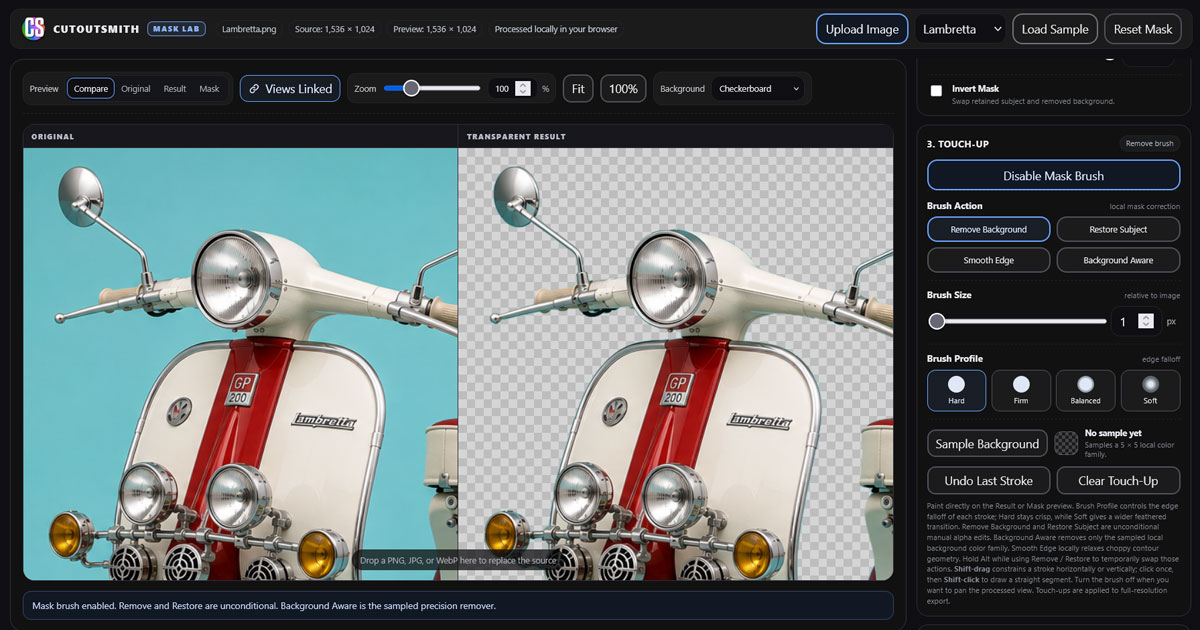
Quick start
For most images, CutoutSmith is a four-step job: load the image, identify the background, refine the mask, then export a transparent PNG.
Where CutoutSmith fits in Green Macaroni
CutoutSmith is the isolation step. It prepares clean transparent artwork that can move directly into the rest of the Green Macaroni creative workflow.
A common workflow is to correct or color-grade a photograph in FilterSmith, remove the unwanted background in CutoutSmith, then place the transparent PNG into GridSmith. Finished GridSmith pages can then become part of a booklet in ZineSmith.
What CutoutSmith does
CutoutSmith is deliberately narrower than a general raster editor. Its job is to produce the cleanest practical transparency mask while preserving the source artwork.
Designed for difficult artwork, not just simple portraits
CutoutSmith is especially useful for illustrations, scans, botanical artwork, vintage engravings, labels, pale artwork on pale backgrounds, flat-color backgrounds and fine linework that ordinary background removers can damage.
Two separate layers of work
| Layer | Purpose |
|---|---|
| Working analysis and mask | CutoutSmith can simplify, classify and analyze a preview proxy to decide what belongs to the background. This is temporary working data. |
| Final artwork | The generated alpha is applied to the original full-color source. The original RGB detail remains the artwork that is exported. |
Automatic first, manual authority last
The automatic system is intentionally conservative. It uses background color evidence, border connectivity, image structure and protected foreground information to avoid erasing coherent subject detail. When the automatic system is not enough, the Background Selection Brush and Touch-Up tools let you override it locally rather than making every other part of the image more aggressive.
Load images and samples
Uploaded files remain local to your browser. CutoutSmith supports PNG, JPG/JPEG and WebP.
- Use Upload Image in the header, or drag a supported image onto the preview stage.
- The header reports the source and preview information after loading.
- Large sources may use a reduced-resolution preview proxy for browser safety. That does not downsample the final export.
- The app includes four built-in sample images so you can learn the masking tools without supplying your own file.
Reset Mask keeps the current image loaded but clears manual mask work and returns its masking settings to the correct starting state. Built-in samples return to their own tuned defaults; uploaded images return to the general defaults and normal adaptive Auto Detect behavior.
Preview workspace
The preview is built for comparing source, result and mask without losing your place on a zoomed image.
| View | Use |
|---|---|
| Compare | Shows Original and Result together. With Views Linked enabled, panning one keeps the other aligned. |
| Original | Shows the untouched source. Sample Background Color and the Background Selection Brush work here. |
| Result | Shows the source RGB with the current transparency mask applied. The Touch-Up Mask Brush works here. |
| Mask | Shows the alpha mask itself, useful for finding small missed regions or damaged subject detail. The Touch-Up Mask Brush also works here. |
Zoom and navigation
- Use the Zoom slider or number field from 5% to 400%.
- Fit fits the artwork to the current viewport.
- 100% shows actual source-pixel scale.
- When no painting tool owns the pointer, drag an oversized preview to pan it.
- The checkerboard, white, black and mid-gray preview backgrounds make different edge problems easier to see. They affect inspection only, not export.
1. Background detection
Start by telling CutoutSmith what family of pixels should be treated as the background.
Auto Detect
Auto Detect estimates a simple background from reliable border evidence and builds a compact background profile. The displayed Detected background swatch is a useful summary, while the internal model may also account for related lighting and color variation when the background is uneven.
Auto Detect is a strong first choice for white or off-white paper, scans and simple backgrounds. On uploaded images, CutoutSmith can evaluate a small deterministic set of plausible starting balances and choose a subject-safe candidate.
Sample Background Color
Choose Sample Background Color when you know exactly what color should be removed. You can type or choose a color, or click Pick from image and then click the background in the Original preview.
Background Selection Brush
This is a non-destructive teaching tool for difficult images. It guides classification before the final alpha is made; it is not a manual eraser.
| Action | Meaning |
|---|---|
| Mark Background | Paint a spatial region that you know belongs to the background. CutoutSmith uses that location plus color, continuity, edge, texture and topology evidence to expand the background classification safely. |
| Restore Selection | Paint source regions that must remain subject, even when their color resembles the background. This creates a foreground classification override. |
Mark Background guidance appears pink; Restore Selection guidance appears green. If the two overlap, the most recently painted guidance wins in that overlapping area.
Why this is different from the Touch-Up brush
A broad Background Selection stroke can graze foreground without simply deleting every pixel under the brush. The system still considers source-image edges, texture, connected regions, protected foreground and the learned background family. By contrast, the later Remove Background and Restore Subject Touch-Up actions are direct alpha edits and are intentionally unconditional.
Brush controls
- Brush Size ranges from 1 to 180 px.
- Undo Selection Stroke reverses the most recent Mark Background or Restore Selection stroke.
- Clear Selection Guidance returns to the ordinary automatic/sample-guided masking path.
- Shift-drag constrains the active stroke horizontally or vertically.
- Click once, then Shift-click to draw a straight segment from the previous endpoint.
2. Refine Mask
Each global control answers a different masking question. Small changes are usually better than pushing several controls to extremes at once.
| Control | What it changes | Practical use |
|---|---|---|
| Background Tolerance | How much color variation can still count as background. | Raise it when the background varies slightly; lower it if subject colors begin joining the background family. |
| Edge Recovery | How strongly delicate partially background-colored edge pixels are reclaimed. | Useful for fine linework, wispy contours and pale edges that become too thin. |
| Detail Protection | How strongly small enclosed pale details and islands are protected. | Raise it when small holes or light details inside the subject are being incorrectly removed. |
| Expand / Contract Subject | Moves the retained contour slightly outward or inward, from -8 to +8 px. | Use tiny values to remove a rim or reclaim a clipped outline. Positive values grow the subject. |
| Fringe Cleanup | Decontaminates partially transparent edge RGB pixels without changing the mask shape. | Increase it when the alpha edge is right but still carries a visible background-colored halo. |
| Feather | Softens the alpha boundary, from 0 to 8 px. | Use modestly when a hard cut looks unnatural. Fine illustration often needs little or no feather. |
| Edge Smoothing | Polishes small stair-steps and locally rough removable-background contours. | Useful when the boundary geometry looks choppy but subject interiors are already correct. |
| Invert Mask | Swaps retained subject and removed background. | Useful when the region you want to keep is the opposite of the normal interpretation. |
3. Touch-Up Mask Brush
The Touch-Up brush is the final local authority over alpha. Use it when global settings and background guidance are already close but a stubborn area still needs direct correction.
| Brush action | Behavior |
|---|---|
| Remove Background | Subtracts alpha wherever you paint. It does not care about background color, tolerance or automatic classification. |
| Restore Subject | Restores alpha wherever you paint. It is the unconditional inverse of Remove Background. |
| Smooth Edge | Locally relaxes choppy contour geometry without repainting the RGB image. Repaint the area for a stronger smoothing pass. |
| Background Aware | Removes only a sampled local background color family, using local mask context to reduce damage to similarly colored subject pixels. |
Background Aware sampling
Select Background Aware, click Sample Background, then click the troublesome background color. The tool samples a 5 × 5 local color family. After that, paint the area that needs selective cleanup.
Precision behavior
- Brush Size ranges from 1 to 120 px, including true 1-pixel precision work at high zoom.
- Hold Alt while using Remove Background or Restore Subject to temporarily swap those two actions.
- Shift-drag constrains the current stroke horizontally or vertically.
- Click once, then Shift-click to draw a straight segment from the previous endpoint.
- Undo Last Stroke removes the latest touch-up stroke.
- Clear Touch-Up removes the manual touch-up history while leaving the automatic/refined mask settings intact.
Turn the Mask Brush off when you want ordinary panning of the processed view.
Brush Profiles
Every Touch-Up stroke stores its own edge profile. Changing the current profile affects new strokes only; existing strokes keep the falloff they were painted with.
| Profile | Character | Good for |
|---|---|---|
| Hard | Crisp edge with only a narrow anti-aliased rim. | Pixel-precise cleanup, hard graphic edges, labels and sharp illustration contours. |
| Firm | Small controlled soft edge. | Clean but slightly forgiving contour work. |
| Balanced | The original/default CutoutSmith brush behavior. | General purpose corrections and a safe starting point. |
| Soft | Broad feathered falloff. | Organic photographic edges and corrections that should blend gradually. |
The on-canvas cursor shows both the overall brush diameter and an approximate inner solid-core diameter, helping you judge the selected profile before painting.
Built-in samples
The four built-in samples are teaching images, and each has deliberately tuned starting values based on real testing.
| Sample | Tolerance | Edge Recovery | Detail Protection | Expand / Contract | Fringe | Feather | Smoothing |
|---|---|---|---|---|---|---|---|
| Lambretta | 0 | 9 | 0 | -0.74 px | 0% | 0.0 px | 100 |
| Blue Room | 18 | 52 | 94 | -0.53 px | 55% | 0.0 px | 100 |
| Basilisk | 0 | 0 | 20 | +1.09 px | 55% | 0.0 px | 100 |
| Chameleon | 19 | 65 | 76 | 0.00 px | 55% | 0.0 px | 47 |
These values are specific to the supplied sample images. They are not silently copied onto your uploads. User images start from the general controls plus CutoutSmith's normal adaptive Auto Detect behavior.
4. Export
Export returns to the original source and rebuilds the result at full source dimensions. The preview proxy is never substituted for the final artwork.
| Export | Result | Filename |
|---|---|---|
| Download Transparent PNG | Original RGB source pixels plus the finished alpha mask. | source-CutoutSmith.png |
| Download Mask PNG | The final mask as a standalone PNG for inspection or use elsewhere. | source-CutoutSmith-mask.png |
Full-resolution safety
Large images are processed in tiles with the required overlap for edge operations. CutoutSmith checks the current browser's practical canvas and memory limits before beginning. If a full-resolution render cannot be allocated safely, the app stops with an error instead of silently reducing the export dimensions.
Manual selection guidance and Touch-Up strokes are carried through the same geometry path used by the preview, so the full-resolution export follows the mask you approved on screen.
Mobile and tablet use
CutoutSmith keeps the same masking system on smaller screens but rearranges the interface to make the preview and controls usable without desktop space.
- Below the wide desktop layout, the preview moves above the controls and the control panel becomes a responsive grid.
- On phone widths, the control panel becomes a single vertical column.
- Compare mode keeps Original and Result side by side even on narrow screens, with smaller view labels.
- The linked-view button is hidden on narrower phone layouts to reduce toolbar crowding.
- Touch targets and numeric fields remain available for precision settings.
- Background Selection and Touch-Up brushes work with pointer/touch input; use the tool toggles to decide whether a drag paints or pans.
Keyboard and control gestures
CutoutSmith keeps global shortcuts intentionally small. Most precision comes from the brush gestures themselves.
| Control | Action |
|---|---|
| Ctrl/Cmd + Z | Undo the latest Background Selection stroke while that brush is active; otherwise undo the latest Touch-Up stroke when one exists. |
| F | Fit the image to the preview viewport. |
| 1 | Show the preview at 100% actual size. |
| Shift + drag | Constrain a Background Selection or Touch-Up stroke horizontally or vertically. |
| Click, then Shift + click | Draw a straight segment from the immediately previous endpoint. |
| Alt while Remove / Restore painting | Temporarily swap Remove Background and Restore Subject. |
| Drag preview | Pan an oversized view when the active painting/sampling tool is not owning that pointer surface. |
| Drag a file onto the stage | Replace the current source with a PNG, JPG/JPEG or WebP image. |
Troubleshooting
Most CutoutSmith problems become easier when you decide whether the issue is background classification, contour refinement or a tiny local correction.
Auto Detect chose the wrong background
Switch to Sample Background Color, click Pick from image, then click a representative background area in the Original preview. For spatially complicated backgrounds, use the Background Selection Brush instead of relying on one global sample.
A disconnected pocket of background will not clear
Enable the Background Selection Brush and paint a representative Mark Background stroke there. CutoutSmith can use that demonstrated background family plus topology and edge evidence to discover related disconnected pockets conservatively.
The subject shares the same color as the background
Use Restore Selection on the Original preview to mark that source region as subject. This is specifically designed for foreground detail that resembles the learned background family.
Raising Background Tolerance starts deleting real artwork
Back the tolerance down. Keep the strongest safe global setting, then solve the stubborn area with Background Selection guidance or local Touch-Up. CutoutSmith is designed around that safer division of labor.
The mask edge is right, but I still see a colored halo
Try Fringe Cleanup. It targets background contamination in partially transparent edge pixels without changing the basic mask shape.
The contour is jagged
Try Edge Smoothing globally, or use the Smooth Edge Touch-Up brush only where the geometry is choppy.
The cut is too tight or too loose everywhere
Use a very small Expand / Contract Subject adjustment. Positive values grow the subject; negative values contract it.
I need to fix one tiny pixel-level area
Enable the Mask Brush, zoom in, set Brush Size to 1 px, choose Hard or Firm, and use Remove Background or Restore Subject. The cursor stays visible even at that tiny source-pixel size.
Background Aware does nothing
It needs a local color sample first. Select Background Aware, click Sample Background, then click the troublesome background color before painting.
I cannot pan while the brush is active
That is intentional. The active brush owns the processed preview pointer. Turn the Mask Brush off when you want normal panning.
The preview looks softer or smaller than my source
The preview may be a reduced proxy for responsive editing and browser safety. Export is rebuilt from the original source dimensions.
Full-resolution export stops with a safety warning
The image exceeds the browser's safe canvas or memory profile. CutoutSmith stops instead of silently downsampling your work.
I want a stylized photocopy or print effect, not just a clean cutout
Use InkSmith after isolation. CutoutSmith intentionally stays focused on background removal and transparency rather than becoming a general art-filter app.